Sometimes, just capturing what you see on the screen—the "above the fold" content—doesn't cut it. You need the whole picture, from the header all the way down to the footer. Whether you're a developer, a QA engineer, or a designer, getting a full-page screenshot of a website is a surprisingly common and critical task.
The good news is you have options. For a quick, one-off grab, your browser's built-in developer tools work beautifully. But when you need to automate this process or handle more complex scenarios, you'll want to look at headless browsers like Puppeteer or even a dedicated screenshot API for maximum reliability.
Why Bother With a Full-Page Screenshot?
A full-page capture provides a complete, unambiguous visual record of a webpage at a specific moment in time. This is invaluable for a whole host of professional tasks.
This guide will walk you through the practical, real-world solutions for any situation you might encounter. From archiving a site for compliance reasons to comparing a design mockup with the live version, knowing the right tool for the job is everything.
Common Scenarios Where Full-Page Captures Save the Day
- Visual Regression Testing: This is a big one for developers. After deploying new code, you can compare a new full-page screenshot against a "baseline" image to instantly spot any unintentional visual bugs that other tests would miss. Think wonky layouts, broken fonts, or color changes.
- Website Archiving: For legal or compliance purposes, you often need to preserve a perfect snapshot of a website. A full-page screenshot acts as a timestamped, verifiable record of exactly what was on the page.
- Design Feedback and Collaboration: Designers and product managers can mark up a complete screenshot to give precise feedback on spacing, alignment, and how the page looks across its entire length. No more vague notes like "the thing at the bottom looks off."
- Content and Ad Verification: Marketing teams use these captures to ensure dynamic ads, personalized content blocks, and other elements are loading correctly for different user profiles across the entire page.
If you're unsure which path to take, this decision guide can help point you in the right direction.
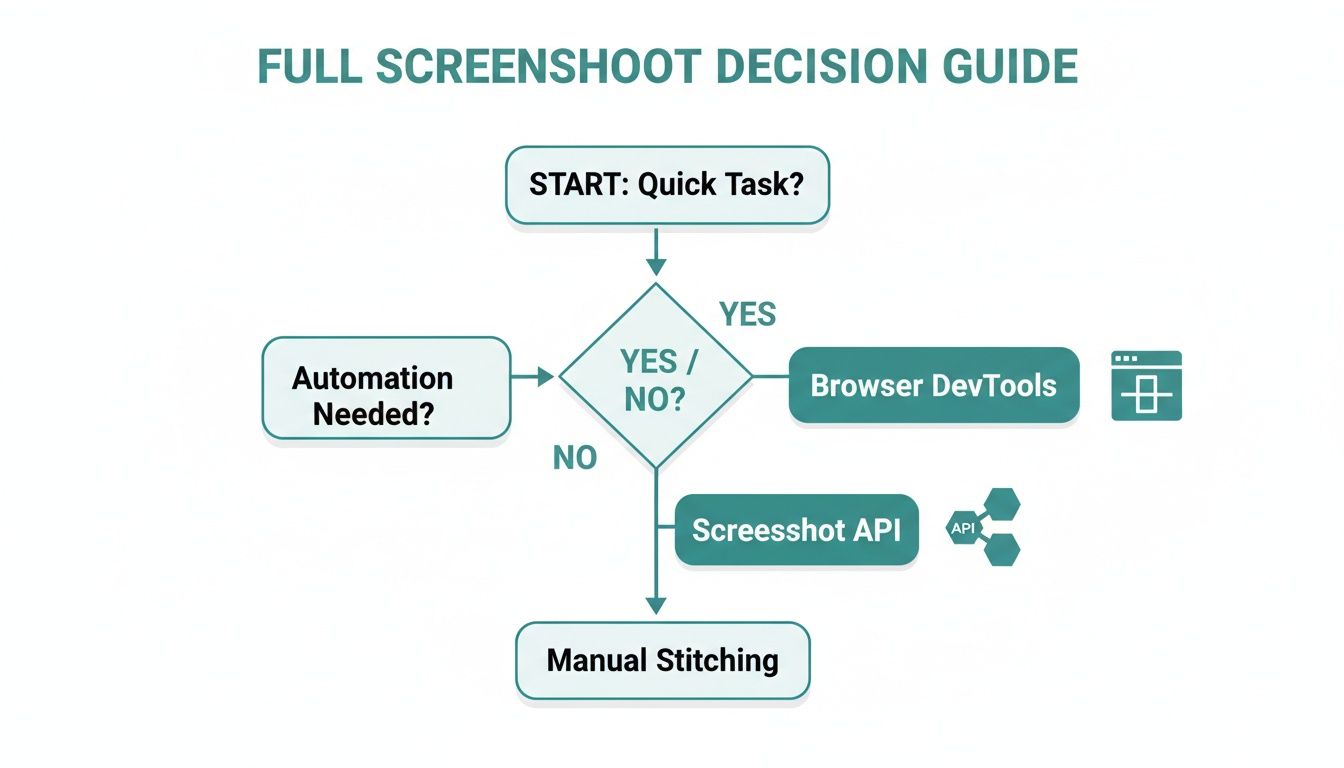
The core idea is to match the tool to the task. A simple job only needs a simple tool, but if you're building an automated workflow, you need something far more robust and scalable.
Of course, taking the shot is just one part of the equation. The format of the final image matters, too. Many developers find themselves needing to go through the process of converting a webpage to PNG for its quality and transparency support.
Method Comparison at a Glance
To help you decide quickly, here’s a high-level look at the different approaches we'll cover.
| Method | Best For | Complexity | Scalability |
|---|---|---|---|
| Browser DevTools | Quick, one-off manual captures | Low | Not Scalable |
| Headless Browsers | Automated testing, custom scripts | Medium | Moderately Scalable |
| Screenshot APIs | High-volume, reliable, scalable captures | Low | Highly Scalable |
Each method has its place, and the best choice really depends on your specific project requirements, technical skill, and how many screenshots you need to generate. We'll start with the most straightforward approach first.
Using Built-In Browser Tools for Quick Captures
Before you rush to install an extension or write a line of code, remember that your browser already has a powerful, albeit hidden, feature for this exact task. Both Google Chrome and Mozilla Firefox include native commands to take a full screenshot of a website, which is perfect for those quick, one-off captures.

This tool is tucked away inside the developer tools. I know that sounds a bit technical, but the process itself is incredibly straightforward. It's my personal go-to when I need a fast visual of a page for a design review or to quickly document a bug. The best part? No extra software needed.
Capturing a Full Page in Chrome
In Google Chrome, this feature is hidden within the command menu. Once you know the shortcut, it's a direct and clean process.
Here’s how you do it:
- First, open Developer Tools on the page you want to capture. The fastest way is with a keyboard shortcut: Cmd+Option+I on a Mac or Ctrl+Shift+I on Windows.
- With the dev tools panel open, press Cmd+Shift+P (Mac) or Ctrl+Shift+P (Windows) to pull up the Command Menu. Think of this as a powerful search bar for every developer function.
- Begin typing the word "screenshot" into the search bar, and you'll see a few options pop up.
- Just select "Capture full size screenshot" from that list and hit Enter.
Chrome handles the rest, automatically scrolling and stitching the page into a single image. It will then prompt you to save the PNG file. If you want a more detailed breakdown, we have a complete guide on how to take a full-page screenshot in Chrome that covers a few extra tips.
Taking Screenshots in Firefox
Firefox has a similar feature, but the steps are a little different. Personally, I find its built-in tool a bit more intuitive since you don't have to dig into developer commands to access it.
It's as simple as this:
- Right-click on any empty space on the page (avoiding links or images).
- Choose "Take Screenshot" from the context menu that appears.
- A new interface will pop up. In the top-right corner, select the "Save full page" option.
- Finally, click "Download" to save the image to your computer.
This native browser method is incredibly efficient for simple tasks. You get a pixel-perfect capture of the entire rendered page in seconds. However, its manual nature makes it impractical for any kind of automated or large-scale project.
When Browser Tools Fall Short
While these built-in tools are fantastic for a quick grab, their manual nature is a dead end if you need to capture hundreds of pages or integrate screenshots into an automated workflow.
The real trouble starts with modern, dynamic websites. These tools often stumble on pages with:
- Infinite Scroll: The browser can only capture content that has already loaded, meaning infinitely scrolling pages will get cut off.
- Lazy-Loaded Elements: Images or entire sections designed to load only when you scroll down might be missing from the final screenshot.
- Cookie Banners: Those pesky popups and consent banners can easily obstruct the page content in your final image.
For these more complex challenges, you’ll need to look beyond the browser’s built-in options and explore programmatic solutions. If you're curious about the broader landscape of options, this guide on mastering full page screenshots on any device is an excellent resource.
Automating Screenshots with Headless Browsers
When you need to capture hundreds of pages or integrate screenshots into a testing workflow, manual methods just won't cut it. This is where headless browsers like Puppeteer and Playwright come in. They let you drive a real browser (like Chrome or Firefox) entirely with code, giving you the power to automate everything from visiting a URL to waiting for complex animations before you take a full screenshot of a website.
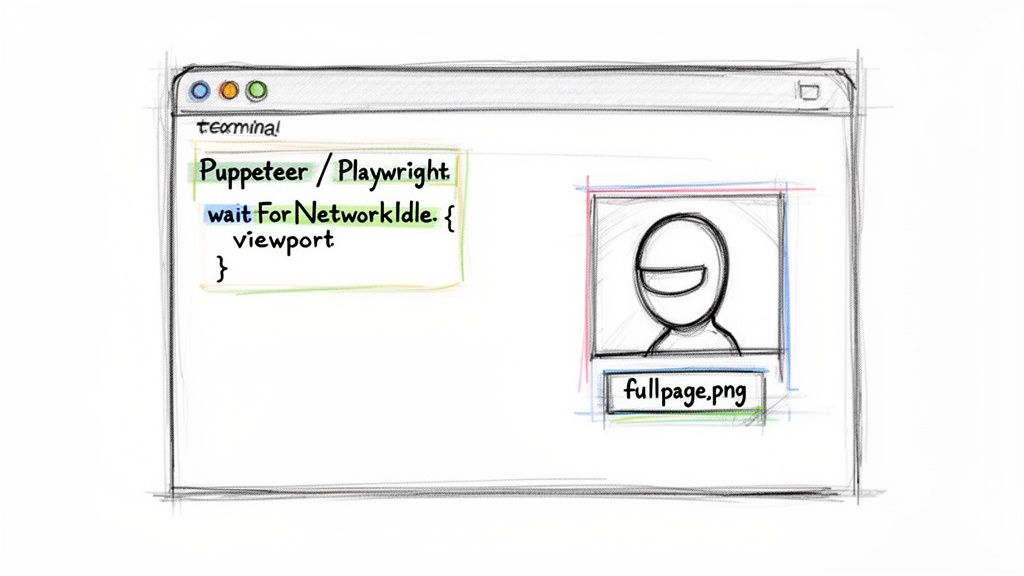
This programmatic approach is the backbone of most modern visual testing pipelines. It definitely requires some coding know-how and a server to run on, but in return, you get incredible flexibility to handle the kind of dynamic, tricky web pages where simpler browser tools fall flat.
The demand for this kind of automation is skyrocketing. The website screenshot software market is projected to hit $550 million by 2032—a massive 120% jump from its $250 million valuation in 2023. This explosive growth shows just how essential these tools have become.
A huge part of that is the full-page capture feature. It's considered vital by 78% of QA engineers for regression testing, as visual comparisons can catch 55% more bugs than just looking at code. You can dive deeper into these numbers in Dataintelo's industry report.
A Practical Puppeteer Example
So, what does this look like in practice? Here’s a straightforward script using Puppeteer, a popular Node.js library from Google. This code snippet fires up a headless version of Chromium, goes to a specific URL, and saves a full-page screenshot.
If you're just starting to automate your captures, this is a fantastic jumping-off point.
const puppeteer = require('puppeteer');
(async () => { const browser = await puppeteer.launch(); const page = await browser.newPage();
// Set a realistic viewport to ensure the page renders correctly await page.setViewport({ width: 1280, height: 800 });
// Navigate to the target URL and wait for network activity to settle await page.goto('https://example.com', { waitUntil: 'networkidle0' });
// Take the full page screenshot await page.screenshot({ path: 'full-page-capture.png', fullPage: true });
await browser.close(); })();
The magic here is in the fullPage: true option. Without it, you’d only get the portion of the page visible in the viewport. The waitUntil: 'networkidle0' command is also a lifesaver, telling Puppeteer to hold off until network traffic has been quiet for 500ms, giving all the initial page elements a chance to load.
Handling Real-World Challenges
Of course, the web is a lot messier than a simple example. Modern sites are packed with dynamic content, images that only load when you scroll, and pesky cookie banners that can completely block your view.
The most common pitfall I see is not properly accounting for lazy-loaded content. A standard screenshot command will fire before the user has "scrolled" those elements into view, resulting in an incomplete image with blank sections.
To get around this, your script has to mimic actual user behavior. That means programmatically scrolling down the page to trigger all the content to load before you snap the picture.
Here are a few common headaches and how to solve them:
- Lazy-Loading Images: You'll need to scroll the page to the very bottom before taking the screenshot. A simple loop that scrolls down a bit, waits, and repeats is usually enough to get all the lazy-loaded content to appear.
- Cookie Banners: Your script needs to find the CSS selector for the cookie banner and then simulate a click on the "accept" button. This can be fragile, though—if the website's developers change the selector, your script will break.
- Network Instability: Sometimes,
networkidle0isn't enough. For pages with lots of scripts or slow-loading components, you might need to explicitly tell your script to wait for a specific element to become visible usingpage.waitForSelector()before you proceed.
Each of these solutions adds another layer of complexity and maintenance to your script. While powerful, running headless browsers at scale is a serious commitment. You have to manage browser instances, deal with crashes, and optimize performance, which can quickly turn into a significant infrastructure and engineering challenge.
The API Approach: A Smarter Way to Capture Websites
While it’s cool that headless browsers give you fine-grained control, trying to manage them yourself in a live production environment is a massive engineering headache. A dedicated screenshot API is a much cleaner path. It takes all the messy work—browser management, server maintenance, script debugging—off your plate so you can focus on building your actual product.
Instead of wrestling with a finicky Puppeteer or Playwright script, you just make a simple API call. For any system where speed, reliability, and scale are important, this is really the way to go.
This shift toward automated tools isn't just a hunch; it's a huge market trend. The global Website Screenshot Software market has ballooned to an estimated $500 million, and it's projected to shoot past $1.2 billion by 2033. This explosion is fueled by a real need for tools that can reliably grab full-page screenshots while sidestepping all the common annoyances on today's websites. If you're curious about the numbers, you can read the full market research for a deeper look.
How a Screenshot API Simplifies Everything
A good screenshot API is built from the ground up to deal with the chaos of the modern web. It’s designed to replace fragile, custom-coded scripts with battle-tested features that just work.
Think about all the little things that can go wrong. A solid API handles them for you automatically:
- Ad and Popup Blocking: Most APIs are smart enough to block ads and popups right out of the box. You get a clean, uncluttered screenshot without having to do anything extra.
- Cookie Banner Dismissal: Forget trying to script a click on the "Accept" button. The API recognizes and dismisses those consent banners before they can ruin your shot.
- Waiting for Dynamic Content: The best services have built-in logic to wait for the page to finish loading all its content, ensuring you don't capture a half-rendered page.
A single API call can replace dozens of lines of brittle, custom code. This drastically reduces development time and eliminates a major source of ongoing maintenance headaches, especially as target websites change their layouts.
From Complex Script to Simple Request
Let's put this into perspective. Imagine that complicated Puppeteer script you wrote to handle lazy loading and cookie banners. With an API, that whole chunk of code shrinks down to a single, clean HTTP request.
You just send the URL and tell it what you want—like full_page=true. The service does all the heavy lifting on its servers and sends back a perfect image. This API-first approach can be a real game-changer for your workflow. For a more technical breakdown, you can learn more about the specifics of using a website screenshot API and see how it fits into modern applications.
This method is perfect for a whole host of real-world uses where you need consistent results at scale.
Common Applications:
- SERP Tracking: SEO pros can automatically capture search engine results pages to keep an eye on rankings and ad placements.
- Visual Regression Testing: QA teams can plug the API into their CI/CD pipelines to automatically flag visual bugs before they ever make it to users.
- Website Archiving: For legal and compliance purposes, an API offers a foolproof way to create timestamped visual records of web content.
Troubleshooting Common Screenshot Failures
Let's be honest: getting a perfect website capture on the first try is a small miracle. Modern web pages are a tangled web of dynamic elements, and when you try to take a full screenshot of a website, you’re bound to hit some frustrating snags. From missing images to half-loaded content, a lot can go wrong. This section is all about diagnosing and fixing those common headaches.
These problems are so pervasive that they've spawned an entire industry. The market for full-screen website screenshot software is expected to hit a staggering $1,865 million by 2031. Why? Because basic browser captures fail an estimated 40% of the time, thanks to the very popups and dynamic content we're about to tackle. This makes a reliable tool essential for any serious work, as detailed in this thorough market research report.
Handling Dynamic Content and Lazy Loading
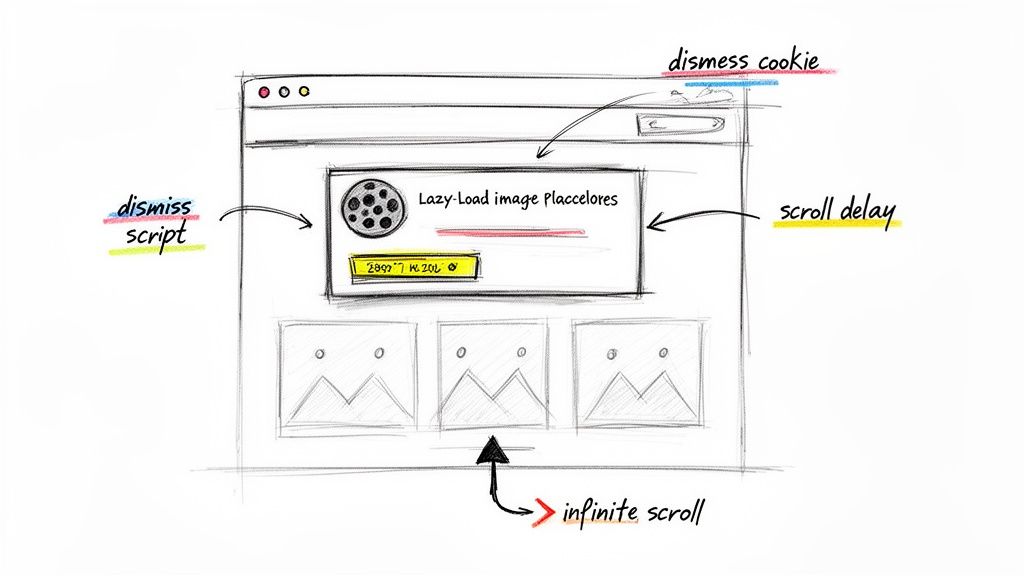
One of the biggest culprits behind incomplete screenshots is content that only loads when you need it. To speed things up, modern sites use lazy loading for images and infinite scroll for long feeds. This is great for users, but it's a nightmare for screenshot tools because the capture command often executes before these elements ever appear.
The solution is to make your tool behave more like a person.
- Scripted Scrolling: If you're using a headless browser, you'll need to programmatically scroll the page. I've found that a simple loop that scrolls a bit, pauses for a moment, and repeats until it hits the footer works wonders. This scrolling action is what triggers those lazy-loaded images and infinite scroll content to finally load.
- Delay Parameters: The easier route, especially if you're using an API like ScreenshotEngine, is to simply add a
delayorscrollparameter to your request. This tells the service to wait a few seconds or scroll to the bottom of the page before it snaps the picture, giving everything time to render.
Here's the key: build a pause into your process. Whether you code a delay yourself or just flip a switch in an API, giving the page a moment to breathe is the single most effective way to avoid those frustratingly blank spaces and chopped-off sections.
Dealing with Overlays and Visual Glitches
Even when all your content is present, other elements can photobomb your screenshot. We’ve all seen them: cookie consent banners, "subscribe now" popups, and even CSS animations that can obscure content or create bizarre visual artifacts.
Here’s how to get them out of the way:
- Dismiss Scripts: With a headless browser script, you can target an overlay's CSS selector (like the
divfor a cookie banner) and simulate a click to make it disappear. The downside is that this approach is brittle—one little website update can change the selector and break your entire script. - Blocking Parameters: This is where professional screenshot APIs really shine. They come with built-in parameters to automatically block ads, hide cookie notices, and even freeze animations. You get a clean, predictable shot every time without the maintenance headache.
- Font Rendering: Ever get a screenshot where the text looks like garbage? That’s usually because custom web fonts didn't load in time. In Puppeteer, using a command like
waitUntil: 'networkidle0'can fix this by waiting for all network requests, including fonts, to finish. A good API handles this kind of smart waiting for you.
These are just a handful of the most common website screenshot challenges developers run into. While scripting your own solutions gives you ultimate control, it also adds a lot of maintenance overhead. For consistent results, a managed API is often the more reliable and efficient path.
Got Questions About Website Screenshots?
Even with the best tools, you'll inevitably run into some tricky situations when trying to take a full screenshot of a website. I've seen it all, and this is where developers and QA teams often get tripped up. Let's walk through some of the most common problems and how to solve them.
How Can I Screenshot a Website with Infinite Scroll?
This one’s a classic. Standard full-page capture tools just don't work with infinite scroll. The tool snaps the picture before new content has a chance to load as you scroll down, leaving you with a cut-off image. It's frustrating.
If you're using a headless browser like Puppeteer, you have to get your hands dirty and write a script that mimics a user. The logic involves scrolling down a bit, waiting for the new content to pop in, and repeating this until you hit the bottom. Honestly, it can be a real pain to get right.
A much simpler way is to use a dedicated screenshot API. The good ones have a simple parameter you can set to handle infinite scroll for you. It takes care of all the complex scrolling logic behind the scenes, ensuring the entire feed gets captured.
What Is the Best Image Format for Website Screenshots?
There's no single "best" format. The right choice really comes down to what you need the screenshot for.
- PNG: This is my go-to for anything that needs to be pixel-perfect. Think visual regression testing, design feedback, or archival copies. PNGs use lossless compression, so text and UI elements stay incredibly sharp.
- JPEG: If the screenshot is heading for the web—like in a blog post or as a social media preview—JPEG is usually the better pick. You get a much smaller file size with very little noticeable drop in quality.
- WebP: This is the modern powerhouse. WebP offers fantastic compression for both lossless and lossy images, which can make a real difference for your site's loading speed.
Most screenshot APIs worth their salt will let you specify the format you want right in the API call, giving you total control.
Can I Capture a Specific Element Instead of the Full Page?
Absolutely, and it's something you'll need to do all the time. Maybe you only want to track a specific chart, an ad placement, or a particular UI component.
With Puppeteer, you can do this by targeting the element with a CSS selector and then calling the screenshot() method on that specific element. It works, but it can be clunky.
A more direct approach is using a screenshot API that lets you pass the CSS selector as a parameter. The service does the work for you, returning a perfectly cropped image of just that element. This saves you the extra step of capturing a huge image and then trying to crop it yourself.
How Do I Handle Cookie Banners and Popups?
Ugh, overlays. Cookie banners are the bane of automated screenshots. If you’re using a headless browser, you’re stuck writing fragile code to find and click the "accept" button. The moment a website tweaks its design or CSS, your script breaks.
This is where screenshot APIs truly shine. Most are built to automatically detect and dismiss common overlays, ads, and cookie banners by default. You get a clean, unobstructed screenshot without writing a single extra line of code.
Ready to stop wrestling with headless browsers and start getting perfect captures with a single API call? ScreenshotEngine handles all the complexity of modern websites for you. Start for free and get your API key in seconds.