
If you're still relying on a traditional SERP results checker that just gives you a list of URLs and their rank, you're working with incomplete data. The modern search landscape is visual, dynamic, and hyper-personalized. A simple text-based rank is no longer enough; it's a dangerously misleading picture of your actual visibility.
Why Traditional SERP Checkers Are Falling Behind
Let’s be honest, the old way of tracking search engine results is broken. Relying on text-only scrapers to tell you your rank is like trying to understand a movie by only reading the script. You might get the basic plot, but you miss all the visual context that truly matters to the audience.
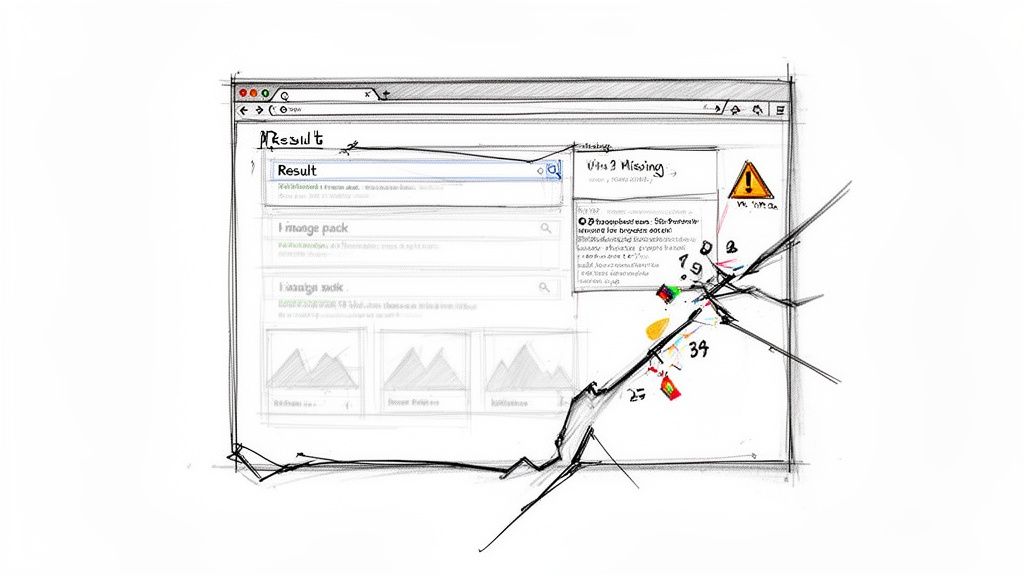
The reality is that Google no longer serves up a simple list of ten blue links. Today's search results are a dynamic collage of features all competing for a user's attention, and this is exactly where conventional tools fail spectacularly.
The Blind Spots of Text-Based Scraping
Plain and simple, traditional rank trackers are blind to the most impactful parts of a modern SERP. They just can't "see" or accurately report on the visual elements that actually dictate user clicks and engagement.
So, what are they missing?
- AI Overviews: These AI-generated summaries often dominate the top of the page, pushing organic results far below the fold. A text scraper might not even register their presence.
- Image and Video Packs: Visual carousels can hog the screen real estate, especially for product or "how-to" queries. Your rank of #3 is meaningless if you're buried beneath a massive, engaging image pack.
- Featured Snippets and PAA Boxes: "People Also Ask" sections and featured snippets answer user queries directly on the SERP, often eliminating the need for a click in the first place.
- Map Packs and Local Listings: For any business with a physical location, the map pack is everything. A standard scraper won't tell you if you're appearing prominently or are completely absent from this crucial element.
This lack of visual context leads to flawed data and, ultimately, misguided SEO strategies. You might think you're ranking well, but in reality, your listing is invisible to the user. To truly understand modern search, you need to think differently, which is why resources like this AI Overview Tracker Guide have become so essential.
Constant Change Breaks Fragile Tools
Beyond just the visual elements, the very structure of Google's SERP is in constant flux. Remember September 2025? Google made a seismic shift by removing support for the num=100 parameter, capping queries to just 10 results per page.
This single change caused over 77% of websites to lose visibility in tracking data almost overnight, forcing a complete overhaul of data collection methods. When your scraper depends on a specific HTML structure, any unannounced change can shatter your entire workflow.
Text Scraping vs Visual Capture for SERP Analysis
The limitations of text-based scraping become crystal clear when you compare it directly to a visual capture approach. One method parses code, while the other captures reality.
| Feature | Traditional Text Scraper | Visual Capture (ScreenshotEngine) |
|---|---|---|
| Data Source | Parses raw HTML structure, which is inconsistent and fragile. | Captures a pixel-perfect image of what the user actually sees. |
| AI Overviews | Often misses them entirely or misinterprets their position. | Accurately captures their size, content, and impact on the page. |
| Rich Snippets & Media | Cannot "see" images, videos, or interactive map packs. | Renders all visual elements exactly as they appear to the user. |
| Ad Placements | Struggles to identify ad locations and formats accurately. | Captures the exact placement and appearance of all paid results. |
| Resilience to Changes | Breaks easily when Google updates SERP layout or HTML tags. | Highly resilient; as long as the page renders, it's captured. |
| Verifiable Proof | Provides a list of URLs; no definitive proof of appearance. | Offers a timestamped, visual record for undeniable evidence. |
Ultimately, the table shows that relying on a text scraper means you're operating with blinders on. Visual capture gives you the ground truth.
A modern SERP results checker must capture what the user actually sees. It’s not about knowing your rank; it’s about understanding your true visibility in a crowded, visual marketplace.
This is precisely why a visual-first approach is so critical. Instead of scraping fragile HTML that can change without warning, capturing a screenshot provides a definitive, pixel-perfect record of the SERP. This method is resilient to layout changes and captures every single element, from ads to AI Overviews.
Of course, this comes with its own technical hurdles, which we explore in our guide to common website screenshot challenges. But by building a system based on visual evidence, you get ground-truth data that reflects the real user experience.
Designing the Blueprint for Your SERP Checker
Before you write a single line of code, it’s crucial to map out a solid architecture for your SERP results checker. Getting this right from the start is the difference between a reliable, automated tool and a maintenance headache down the road. Let's design a system that's resilient, scalable, and built to capture SERP snapshots on autopilot.
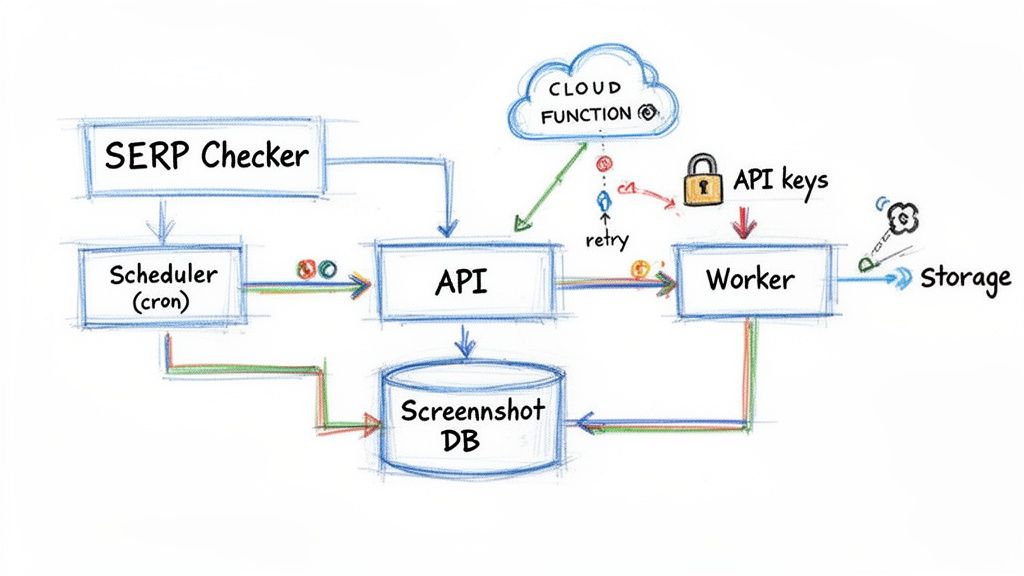
The whole system breaks down into four main parts: a scheduler to kick things off, a worker to make the API calls, a database to hold the metadata, and cloud storage for the actual screenshots. Each piece has a specific job to do, and together they create a smooth, efficient workflow.
Automating Captures with a Reliable Scheduler
The scheduler is the engine of your whole operation. Its only job is to start the screenshot process at whatever interval you decide. You don't need anything fancy here; simple, battle-tested tools are your best bet.
- For self-hosted solutions: You can't go wrong with a classic cron job on a Linux server. It's the most direct way to run a script (like a Node.js or Python file) daily, hourly, or whenever you need.
- For serverless architectures: Cloud-native options are perfect for this. Tools like AWS Lambda with EventBridge or Google Cloud Functions with Cloud Scheduler are incredibly reliable and scale without you ever touching a server.
A simple cron expression like 0 9 * * * is all it takes to trigger your script every morning at 9:00 AM, kicking off the capture process for your keywords. This kind of hands-off automation is exactly what we're aiming for.
The goal is "set it and forget it." Your scheduler should be so reliable that you only think about it when you want to change the timing of your SERP checks, not because it broke.
Designing a Practical Database Schema
The actual screenshots will live in cloud storage, but you absolutely need a database to store the metadata that goes with them. This is what makes your visual archive searchable and truly useful for analysis.
A simple but powerful schema is all you need. Think of a primary table, maybe called serp_captures, with a few key columns:
| Column Name | Data Type | Description |
|---|---|---|
id |
INT (Primary) |
A unique ID for each screenshot record. |
keyword |
VARCHAR(255) |
The search query used for the capture. |
device |
VARCHAR(50) |
The device we simulated (e.g., 'desktop', 'mobile'). |
geolocation |
VARCHAR(50) |
The country code for the search (e.g., 'us', 'gb'). |
storage_url |
TEXT |
The URL pointing to the image file in cloud storage. |
capture_status |
VARCHAR(20) |
The status of the API call (e.g., 'success', 'failed'). |
created_at |
TIMESTAMP |
The exact date and time the screenshot was taken. |
With this structure, you can easily pull all captures for a specific keyword, compare mobile vs. desktop results, or spot failed API calls that need another try.
Structuring Your Application Logic
The application logic is the glue that holds everything together. Triggered by your scheduler, a worker process will read your list of target keywords, loop through them, and fire off API calls to ScreenshotEngine for each one.
It’s incredibly important to build resilience into this logic from day one. Network requests fail. APIs have temporary blips. A smart retry mechanism isn't optional—it's a requirement. If an API call fails, your script should pause for a moment (an exponential backoff strategy works great here) and try again a couple of times before finally marking the job as failed.
Also, be smart about your API keys. Never, ever hardcode them in your script. Use environment variables to store your credentials securely. This is a basic security practice that prevents you from accidentally checking your keys into a public code repository. If you're looking for more on this topic, this guide to website screenshot APIs covers a lot of the fundamental concepts really well.
Alright, we’ve got the high-level plan sorted. Now it's time to get our hands dirty and start capturing the visual data that will actually power our SERP results checker. This is where the ScreenshotEngine API becomes the engine of our whole operation, turning a simple search URL into a pixel-perfect, verifiable record of what people see in the real world.
The real beauty of using a dedicated API for this is its simplicity. It handles all the messy stuff for you—juggling headless browsers, rotating proxies to avoid getting blocked, and solving CAPTCHAs. All you have to do is send the right API call to get exactly the image you need.
Crafting the Perfect API Call
At its heart, a request to ScreenshotEngine is incredibly simple. You just need your API key and the URL you want to capture. For a standard Google search, that URL is just the query string you’d see in your own browser.
Let's look at a basic cURL request. This one searches for "best seo tools 2026" and saves the resulting image as serp.png.
curl "https://api.screenshotengine.com/v1/screenshot"
-G
--data-urlencode "url=https://www.google.com/search?q=best+seo+tools+2026"
-H "Authorization: Bearer YOUR_API_KEY"
--output serp.png
This single command gives you a standard, above-the-fold screenshot. The response from the API is the image file itself, which your script can immediately save. It’s a clean and direct way to start building your visual archive.
Of course, in a real web app, you’re more likely to use JavaScript's fetch. The logic is the same: build the request, add your API key, and handle the image data that comes back.
const apiKey = 'YOUR_API_KEY'; const targetUrl = 'https://www.google.com/search?q=best+seo+tools+2026';
const apiUrl = https://api.screenshotengine.com/v1/screenshot?url=${encodeURIComponent(targetUrl)};
fetch(apiUrl, {
headers: {
'Authorization': Bearer ${apiKey}
}
})
.then(response => {
if (!response.ok) {
throw new Error(API request failed: ${response.statusText});
}
return response.blob();
})
.then(blob => {
// Now you can save this blob as a file
console.log('Successfully captured SERP image!');
})
.catch(error => console.error('Error:', error));
This is the foundation. But the real magic happens when you start customizing the requests to get exactly the intel you need.
From Basic Capture to Advanced Intelligence
A standard screenshot is a good start, but SERPs are deep and complex. To pull out truly actionable insights, you need more control. ScreenshotEngine has a whole suite of parameters that let you simulate different scenarios and zero in on what matters.
- Full-Page Capture (
full_page): Setfull_page=trueto grab the entire scrollable height of the SERP. This is non-negotiable for understanding the full competitive landscape, not just what's at the very top. - Element-Specific Capture (
css_selector): Why capture the whole page when you only care about one part? You can target a specific element using its CSS selector to isolate a competitor's ad (#tads), the "People Also Ask" box (div[data-init-p_action]), or an image pack. - Clean and Consistent Images (
block_cookie_banners): Cookie banners, pop-ups, and chat widgets create visual noise that will throw off your comparisons. Useblock_cookie_banners=trueandblock_ads=trueto get a clean, consistent canvas every single time. This is critical for accurate change detection.
This level of detail is more important than ever. For example, e-commerce SERPs changed drastically in 2025, with image packs showing up for over 90% of product queries by July, up from around 60% in 2024. This kind of shift, detailed in this analysis of e-commerce SERP features, is driven by Google's new AI integrations and makes programmatic screenshots the only reliable way to track these visual elements.
You can try all of this out yourself in the ScreenshotEngine documentation, which has a full playground for building and testing these parameters.
As you can see, you can tweak everything from device type to viewport size and see exactly how it affects the final image before you ever write a line of code.
Simulating Different User Contexts
Your users aren't all sitting at the same desk, using the same browser. To track SERPs accurately, you have to see what they see.
Your SERP checker must see the search results exactly as your target audience does. Simulating different devices and locations isn't just a feature—it's a requirement for meaningful data.
ScreenshotEngine makes this easy with two crucial parameters:
- Device Emulation (
device): Want to see the mobile SERP? Just passdevice=iPhone13Pro. The API will automatically set the right viewport size and user agent, giving you an authentic mobile view. - Geolocation (
geolocation): Local SEO is everything for many businesses. By settinggeolocation=GB, your request will originate from a UK-based IP address, showing you the localized results a user in Great Britain would see.
By combining these parameters, you can build an incredibly rich picture of your visibility. Imagine tracking a keyword on a desktop in the US, an iPhone in the UK, and an Android tablet in Australia—all from the same script.
And to make sure every detail is crystal clear for your analysis, you can request high-resolution captures. We have a whole guide on how to take high-resolution screenshots with an API that walks you through getting the sharpest possible visual data.
Turning Visual Data into Actionable Alerts
Capturing pixel-perfect screenshots is a massive step forward, but the images themselves are just raw data. The real magic happens when you turn that visual archive into timely, actionable intelligence. You need a system that automatically tells you when something important has changed, freeing you from manually sifting through hundreds of images.
This flow is the heart of the operation. It's simple and elegant.
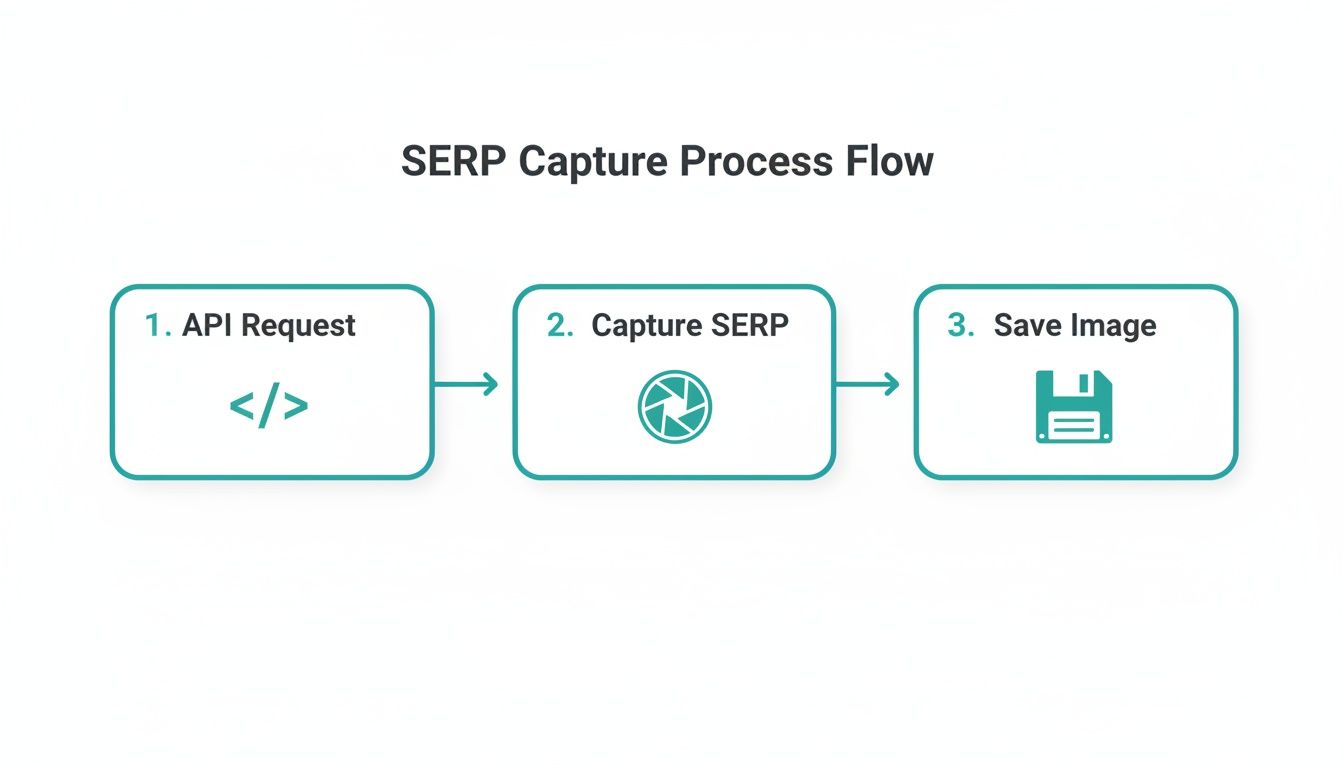
A scheduled API call kicks things off, captures the SERP, and saves the image. This automated capture is the foundation for the entire comparison engine we’re about to build.
Choosing Your Comparison Strategy
At its core, an automated alert system is all about image comparison. The goal is straightforward: take the latest screenshot for a given keyword and compare it to the previous one. If the difference is big enough, fire off an alert.
But "big enough" is subjective. Choosing the right comparison method is critical.
There are two main ways to tackle this, each with its own pros and cons:
Pixel-Level Difference (Pixel-Diffing): This approach is brutally precise. It compares two images pixel by pixel and flags any discrepancy. I mean any. Libraries like
pixelmatchfor JavaScript orPillowfor Python are fantastic for this. They can even generate a "diff" image that highlights the changed areas in red, making it dead simple to see what’s different.Perceptual Hashing (p-hashing): Think of this as a more holistic approach. Instead of a pixel-by-pixel check, p-hashing creates a unique "fingerprint" for an image based on its overall structure and content. You then compare the fingerprints. A small difference between hashes means the images are basically the same; a large difference points to a major change.
Implementing a Practical Comparison Workflow
So, which one should you use? In my experience, a hybrid approach is the way to go for SERP monitoring. You need the precision to catch a new competitor sneaking into the top three, but you also need the intelligence to ignore a minor rendering glitch.
A perceptual hash is perfect for the first pass. It’s computationally cheap and brilliant at ignoring trivial noise like a one-pixel shift in an ad's border. You can set a tolerance threshold—for instance, flag anything with a hash difference greater than 5% as a significant change.
Once a change is flagged by the p-hash, then you can run a pixel-diff analysis. This generates that visual heatmap, giving your team an immediate, easy-to-understand view of exactly what’s new on the page.
Your automated workflow should be smart enough to distinguish between a new competitor appearing and a minor font rendering change. Start with perceptual hashing to detect meaningful shifts, then use pixel-diffing to pinpoint exactly what's different.
This two-step process—p-hash for detection, pixel-diff for visualization—creates a robust system that only bugs you about the changes that actually matter.
Integrating Alerts with Your Team's Tools
An alert is useless if it fires in a vacuum. The final piece of the puzzle is to push these notifications directly into your team's existing communication channels. You want to make SERP changes a visible, immediate part of your operational awareness.
There are countless ways to wire this up, but two of the most effective integrations are:
Slack Notifications: This is my personal favorite. Create a dedicated channel, maybe
#serp-alerts. When your script detects a significant change, it uses the Slack API to post a message. Make sure the message includes the keyword, the device, the percentage of change, and—most importantly—attaches the old and new screenshots (or the diff image) for instant context.Email Alerts: For a more traditional setup, you can have your script send an email. This works well for weekly summaries or for stakeholders who aren't glued to Slack. The email should contain the same core information: keyword, context, and the relevant images attached.
The implementation itself is pretty straightforward. Most languages have well-supported libraries for hitting the Slack API or sending emails via SMTP. Your script just needs to call the right function when its comparison threshold is crossed. This closes the loop, turning a silent data collection process into an active monitoring system that keeps your whole team in the know.
Optimizing Your SERP Checker for Scale
Getting a basic SERP results checker up and running is one thing. But making it hum along efficiently as you scale from a handful of keywords to thousands? That’s a completely different ballgame. Once your system is live, your focus has to shift from just grabbing data to intelligently managing resources and pulling real, long-term insights from that growing visual archive.
If you don't plan for scale from the get-go, you'll slam into ballooning costs and performance bottlenecks that can grind your whole monitoring operation to a halt. The trick is to be smart about your architecture, so it can handle a ton of requests and a massive library of images without breaking a sweat.
Managing Storage Costs and Performance
As your screenshot collection balloons, so will your cloud storage bill. Trust me, storing thousands of high-resolution PNGs gets expensive and slow, fast. The first, and honestly most impactful, change you can make is to switch your output format.
ScreenshotEngine supports modern formats like WebP, which can shrink your file sizes by 25-35% compared to a PNG, with virtually no drop in quality. It’s a simple tweak in your API call, but it delivers an immediate and direct cut to your storage costs. Plus, smaller files mean faster retrieval and processing times down the line.
The next thing you absolutely need is a data retention policy. Ask yourself: do I really need a pixel-perfect SERP screenshot from two years ago? For most of us, the answer is a hard no.
- Short-Term High-Fidelity: I recommend keeping full-res images for the past 30-90 days. This gives you plenty of detailed ammo for immediate analysis and change detection.
- Long-Term Aggregated Data: For anything older, think about archiving the raw images and just keeping the extracted metadata—like competitor rankings or ad counts. You could also just store downscaled, lower-quality versions.
This kind of tiered approach gives you the best of both worlds: you have the granular data you need for recent activity while keeping those long-term storage costs from spiraling out of control.
As you scale, you'll find that raw image storage is your biggest operational cost. An aggressive image optimization and retention policy isn't just a good idea—it's essential for the financial viability of your system.
Boosting Throughput with Smart API Usage
When you’re tracking thousands of keywords every single day, making API calls one by one is just asking for trouble. A simple sequential loop is a massive bottleneck. The real solution is to go parallel by batching requests and using asynchronous workers.
Instead of one script plodding through your keyword list, redesign your system. Have a main process that just adds jobs to a queue (something like Redis or RabbitMQ is perfect for this). Then, spin up multiple independent worker processes that pull jobs from that queue and fire off the API calls in parallel. This completely changes the game for your throughput, letting you capture thousands of SERPs in the time it used to take for a few hundred.
While a service like ScreenshotEngine handles a lot of the heavy lifting for you, understanding the best practices for web scraping with proxies can provide valuable context for optimizing any large-scale data collection effort.
Uncovering Long-Term Trends from Your Archive
With a big, historical archive of SERP screenshots, you've built something incredibly valuable: a visual timeline of Google's evolution. This is where your system goes from being a simple checker to a powerful source of SEO intelligence. By looking at your data over months or even years, you can start spotting the macro trends that are completely invisible in your day-to-day checks.
You can finally start answering those bigger, more strategic questions:
- How often are AI Overviews really showing up for my money keywords?
- Has that one competitor been slowly ramping up their ad spend over the last six months?
- Are video carousels becoming a bigger deal for the informational queries in my niche?
This kind of analysis is more critical now than ever. Consider that by 2025, it's projected that zero-click searches will account for 58-60% of all queries, where users get their answer without ever leaving Google. Visual SERP checkers are the only way to truly see the impact of features like AI Overviews and image packs that text-based trackers miss entirely. By digging into your visual archive, you get a real-world view of how these features are chipping away at your organic visibility.
Common Questions About Building a SERP Checker
When you start architecting a custom SERP results checker, you quickly move from theory to a whole host of practical questions. Building a reliable, production-ready system means you'll have to tackle some common challenges head-on. Let's walk through the hurdles I've seen trip up developers and SEOs most often and talk about how to solve them.
These are the kinds of issues that can easily derail a project if you don't see them coming. Fortunately, they're all manageable with the right approach.
How Do I Handle Google Blocking or CAPTCHAs?
This is almost always the first major roadblock. If you try to fire off a bunch of automated requests to Google from a single server IP, you’re going to get blocked or hit with a CAPTCHA almost immediately. It’s a constant cat-and-mouse game that's incredibly expensive and frustrating to win on your own.
This is exactly why you'd use a specialized service like ScreenshotEngine. The API is built from the ground up to handle this for you. It manages the entire proxy and browser infrastructure, which includes:
- Residential IP Rotation: Your requests are made from a massive pool of real residential IP addresses, so they look just like any other genuine user.
- Sophisticated CAPTCHA Solving: The platform is smart enough to anticipate and programmatically solve CAPTCHAs when they pop up, keeping your success rate incredibly high.
Using an API just offloads this entire headache, letting you focus on the valuable part—analyzing the SERP data—instead of just trying to get to it.
You could try to build your own complex proxy network, but frankly, it's a full-time job. A dedicated screenshot API abstracts away the entire anti-bot problem, saving you a ton of time and resources.
Can I Track SERPs for Different Countries and Languages?
Absolutely, and you really have to for any international SEO work. You simply can't get accurate local search results without making the request look like it’s coming from that specific region. It's a pain to do manually, but programmatically, it's pretty straightforward.
All you need to do is tweak the request URL you send to the API.
- For Country-Specific SERPs: Just use the Google top-level domain for that country. For example,
google.co.ukfor the United Kingdom orgoogle.defor Germany. - For Language-Specific SERPs: You can append the
&hl=parameter to the search URL. Adding&hl=eswill request the SERP in Spanish.
When you send a URL like https://www.google.co.uk/search?q=your+keyword&hl=en to ScreenshotEngine, it handles the rest, making sure the request originates from the right place to capture what a local user would actually see.
What Is the Best Way to Store Thousands of Screenshots?
Whatever you do, don't store a huge volume of images directly on your application server. It's a recipe for disaster—it’s slow, expensive, and just doesn't scale. The standard best practice is to use a dedicated cloud storage solution.
Services like Amazon S3 or Google Cloud Storage are purpose-built for this. You can even set up ScreenshotEngine to upload the captured images directly to your cloud bucket, which makes the whole workflow much cleaner.
A logical naming convention is also a lifesaver for keeping your archive organized. I've found a structure like keyword/YYYY-MM-DD/device.png works really well. This makes it super easy to pull and compare screenshots for a specific keyword over time.
How Can I Programmatically Compare Two SERP Images?
Once you have your images, you need a way to compare them automatically. There are a few excellent open-source libraries that are perfect for this, depending on what you're trying to accomplish.
If you need a precise, pixel-by-pixel comparison that will catch every single change, look into libraries like pixelmatch for JavaScript or Pillow for Python. They can even generate a "diff" image that highlights every altered pixel in red, which is fantastic for detailed analysis.
But sometimes, you just want to know if there's been a significant structural change while ignoring minor rendering differences. In that case, perceptual hashing libraries like imagehash for Python are a better fit. They create a unique digital "fingerprint" for each image, letting you measure their similarity and flag only the big shifts.
Ready to build a SERP checker that gives you ground-truth visual data? With ScreenshotEngine, you can skip the hassle of managing proxies and headless browsers. Start capturing clean, reliable SERP snapshots in minutes. Get your free API key and start building today.