We are thrilled to announce our official integration with viaSocket.com! This partnership brings the power of ScreenshotEngine’s high-speed Screenshot API directly into viaSocket's flexible automation platform, empowering you to automate visual tasks that used to eat up hours of your day.
Tired of manually taking screenshots for regression testing, social media previews, or compliance checks? You can now integrate ScreenshotEngine with viaSocket.com to build powerful, codeless workflows. Our friends at viaSocket have already published some fantastic resources to get you started. Be sure to check out their official ScreenshotEngine integration page and their detailed automation workflows announcement post to see what's possible.
Automate Your Visual Workflows with ScreenshotEngine and Viasocket
Imagine setting up a system that automatically captures essential visual data and then forgetting about it. That's exactly what connecting ScreenshotEngine to your favorite apps through viaSocket makes possible. This guide will walk you through how to build these automated workflows to reclaim your time and minimize human error.
This isn't just theory. Developers, marketers, and QA teams can finally step away from the repetitive work and focus on what really matters. We’re talking about building real-world systems for things like:
- SERP Tracking: Automatically grab screenshots of search engine results pages to keep a close eye on your rankings.
- Compliance Archiving: Set up a schedule to capture snapshots of your site for legal and regulatory peace of mind.
- Visual QA: Every time new code is pushed to staging, trigger a screenshot to catch visual bugs before they go live.
- Social Media Previews: Instantly generate link previews for platforms like Twitter and Facebook as you create content.
How It All Works
At the heart of this automation is a powerful Screenshot API. It’s what lets you request an image of a webpage and get a perfect capture back in seconds. This is a core piece of the larger Screenshot-as-a-Service model, which you can learn more about here: https://www.screenshotengine.com/blog/screenshot-as-a-service. Essentially, it handles all the messy backend infrastructure of running headless browsers so you can just focus on your goal.
When you pair this with an automation platform like viaSocket, you can trigger these API requests based on almost anything—a new entry in a database, a webhook from your CI/CD pipeline, or even a simple schedule.
Here’s a simple visual of a workflow you could build. In this case, a new blog post triggers a process to create a social media preview, which is then processed, checked, and stored away.
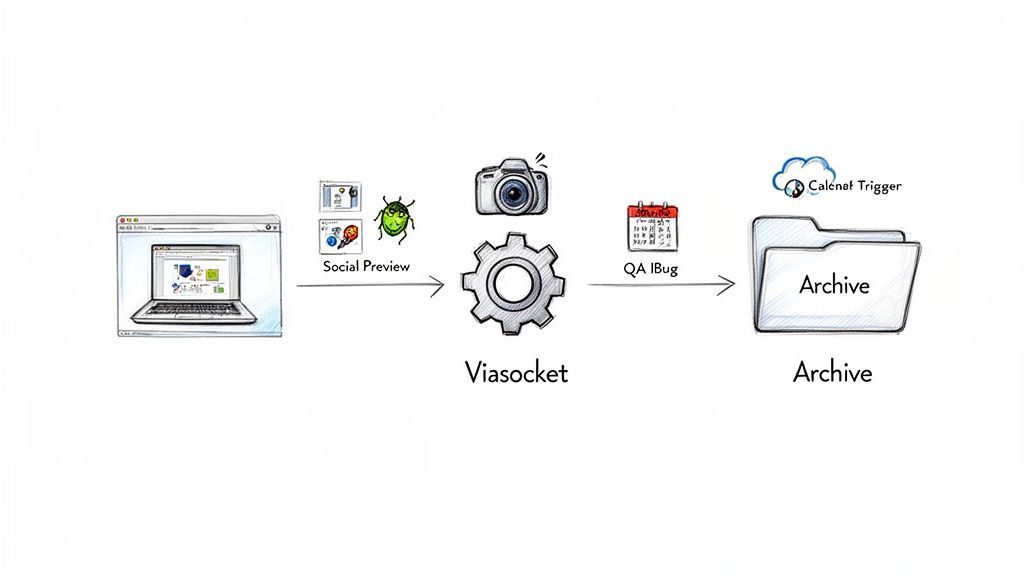
As you can see, an initial event kicks off a whole chain of actions, from the actual screenshot capture to QA and final archival, all without any manual intervention.
A Growing Need for Automation
The demand for this kind of tool is exploding. The website screenshot software market is on track to blow past $1.2 billion by 2033, growing at a steady 12% CAGR. It's clear that smooth API integrations are becoming indispensable for modern development workflows. This integration is also part of the much bigger API economy, which itself is projected to reach an incredible $87.55 billion by 2035.
If you want to dive right in, you can check out viaSocket's official ScreenshotEngine integration page or read their automation workflows announcement post for more ideas.
Getting Your Accounts Ready for Integration
Before we can get ScreenshotEngine and viaSocket.com talking to each other, we need to handle a bit of prep work. Think of this as laying the groundwork—it’s a simple but absolutely critical step that will save you a ton of headaches later.
Our main goal here is to establish a secure connection between the two services. We'll do this using an API key from ScreenshotEngine, which essentially acts as a secret password. It gives viaSocket permission to ask ScreenshotEngine to take screenshots for you. Handling this key correctly from the get-go is non-negotiable for security.
Grab Your ScreenshotEngine API Key
First things first, log in to your ScreenshotEngine account. You'll find your API key waiting for you right on the dashboard. Go ahead and copy it.
Now, here's a pro-tip I can't stress enough: never hardcode your API key directly into your viaSocket flows. Pasting a sensitive key directly into a configuration field is a huge security risk. Instead, the best practice is to store it as a secure variable.
Storing credentials like API keys as environment variables is the industry standard. It keeps your secrets separate from your workflow logic, which makes your automation not only more secure but also much easier to manage if you ever need to change the key.
viaSocket, like most modern automation platforms, has a built-in, secure way to handle these variables. This keeps your key safe but lets your flow access it when it needs to run.
Set Up Your First viaSocket Flow
With your API key copied and ready, it's time to jump into your viaSocket.com dashboard. The heart of viaSocket is the "flow," which is just their name for an automated workflow. We're going to create a new, blank flow to get started.
Once you're in the new flow, you'll see a canvas where you'll build out the automation. This is where we'll eventually set up the call to ScreenshotEngine. The basic structure involves a few key pieces:
- A Trigger: This is the event that starts the whole process.
- An Action: This is the step where we'll actually make the API call to ScreenshotEngine.
- Authentication: This is where you’ll securely plug in the API key you just copied.
Getting these fundamentals right from the start makes everything else fall into place smoothly. If you want to explore all the screenshot options you can control, the official ScreenshotEngine API documentation is your best friend. It’s a complete reference for every parameter you might want to tweak in your viaSocket flow.
Building Your First Automated Screenshot Flow in viaSocket
Alright, with your accounts ready to go, it’s time for the fun part: building your first automated workflow, or as viaSocket calls it, a "flow." This is where the magic happens, connecting an event in one app to the action of taking a screenshot in another. We'll walk through creating one from scratch to show you just how straightforward it is.
Choosing Your Trigger: The Starting Gun
Every viaSocket flow starts with a trigger. Think of it as the starting pistol for your automation—the specific event that kicks everything off. viaSocket is incredibly flexible here, offering a ton of options that can hook into almost any part of your business.
For example, you could trigger a screenshot when:
- A new row is added to a Google Sheet: This is perfect if you maintain a list of competitor URLs you need to check regularly.
- A specific time is reached: Set up a daily or weekly schedule to capture a snapshot of a homepage, pricing page, or even search engine results.
- An incoming webhook is received: This is a more technical but powerful option. A developer could trigger a screenshot directly from a deployment script or another custom application.
Once you’ve decided what will start your flow, the next step is telling viaSocket what to do. In our case, that action is making a call to the ScreenshotEngine API.
This diagram lays out the simple, two-step foundation for our integration: getting your API key from ScreenshotEngine and then using it to build your flow in Viasocket.
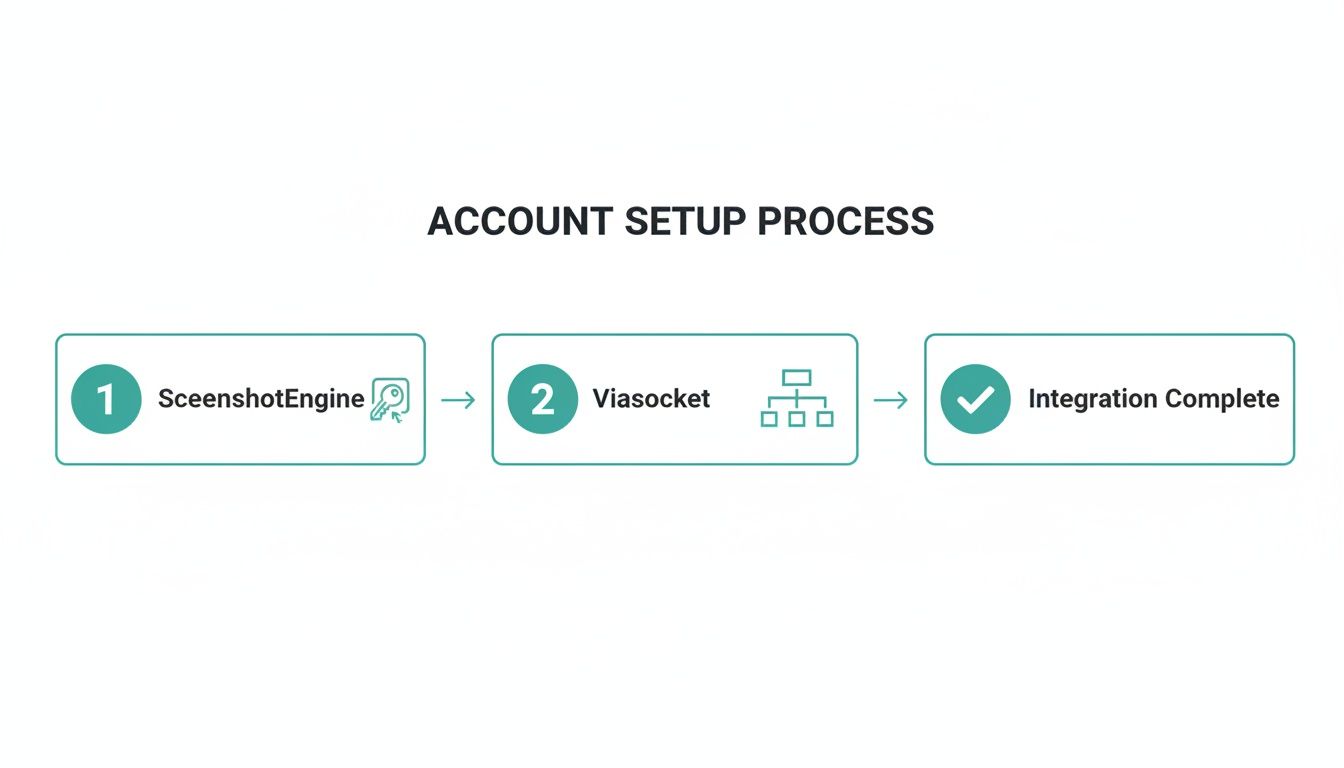
Think of it this way: securely connecting your credentials is the essential handshake between the two platforms before any real work can begin.
Configuring the ScreenshotEngine API Call
To make ScreenshotEngine and viaSocket talk to each other, you'll use viaSocket's built-in HTTP request action. This lets you send a direct request to the ScreenshotEngine API endpoint, complete with any specific instructions you need.
The real power, though, comes from making this request dynamic.
Let's stick with our Google Sheet example. Imagine your trigger is a new row containing a URL. Inside your viaSocket flow, you can grab the URL from that new spreadsheet row and plug it directly into the url parameter of your ScreenshotEngine API request.
This dynamic mapping is what turns a simple task into a genuine automation. You’re not just taking the same screenshot over and over; you're building a system that automatically processes a continuous stream of new URLs. For a deeper look into the mechanics behind this, our guide on how to capture a website covers the technical side in more detail.
You can also customize the screenshot itself. Need to see the entire page, not just what's visible on the screen? Just set the full_page parameter to true. You can also define the image format, dimensions, and even tell ScreenshotEngine to block ads or cookie pop-ups to get a clean, consistent result every time.
To help you get started, here's a quick reference for the most common parameters you'll use when building your viaSocket flows.
Essential ScreenshotEngine API Parameters for viaSocket Flows
| Parameter | Example Value | Purpose |
|---|---|---|
url |
https://example.com |
Required. The full web address of the page you want to capture. |
full_page |
true |
Set to true to capture the entire scrollable length of the page. |
width |
1920 |
Sets the viewport width in pixels for the virtual browser. |
height |
1080 |
Sets the viewport height in pixels. Ignored if full_page is true. |
format |
jpeg |
Defines the image output format. Options include jpeg, png, and webp. |
block_ads |
true |
A handy option to prevent most ads from appearing in the final image. |
block_cookie_banners |
true |
Attempts to dismiss common cookie consent pop-ups before capture. |
These are just the highlights, of course, but they cover the majority of use cases you'll encounter when setting up your initial automations.
A Quick Look at the API Market
The demand for simple, powerful integrations like this is exploding. The global API market, valued at $216.281 billion in 2021, is on track to reach $269.9 billion by 2025. This massive growth is driven by the need for services to work together seamlessly.
Platforms like viaSocket are at the center of this trend, making it possible for anyone to work with APIs without writing complex code. Developers can trigger high-speed screenshots in under 200ms and send them straight to other tools. In North America, where the US dominates with 76.70% of the market, QA teams using this kind of automation have seen their visual testing cycles speed up by 55%.
The Big Idea: The most effective viaSocket flows are built on the dynamic link between a trigger and an action. When you pass data from your starting event directly into the ScreenshotEngine API call, you create a scalable workflow that runs on its own, no hand-holding required.
This simple setup takes a powerful API and transforms it into a fully automated process that can save you an incredible amount of time.
Putting Your Automated Screenshots to Work
Snapping a screenshot is just the first step. The real magic happens when you decide what to do with it next. After ScreenshotEngine sends the image data back to your viaSocket.com flow, you can plug it into hundreds of other applications, finally closing the loop on your automation. This is how a simple image becomes a valuable business asset.
Typically, the response from ScreenshotEngine contains a URL pointing directly to the captured image. viaSocket is brilliant at this part—it lets you effortlessly grab that URL from the API response and feed it into the next step of your workflow. This unlocks some seriously powerful, multi-step automations that handle everything from capture to delivery.
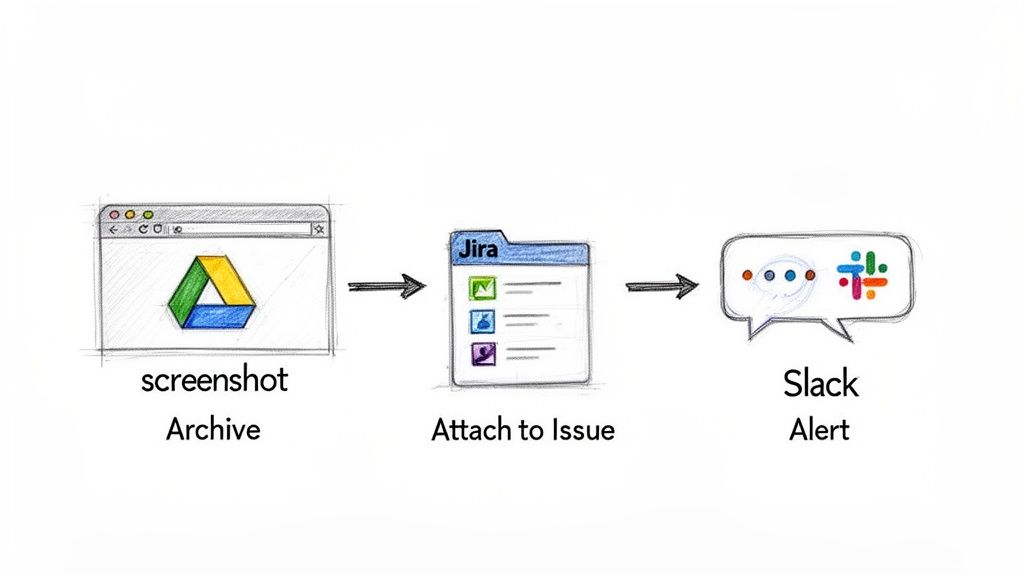
This seamless handoff is the key to making visual data useful across your entire tech stack.
Practical Use Cases for Your Automated Captures
Let's walk through a few real-world scenarios where you can integrate ScreenshotEngine with viaSocket.com to solve common headaches. These examples go beyond simple captures and show you how to build workflows that actually drive decisions, boost quality, and save a ton of time.
- Automated Bug Reporting: Imagine your CI/CD pipeline catches a failed test. Instead of just logging an error, trigger a screenshot of the webpage at that exact moment. Your viaSocket flow can then automatically create a new Jira ticket, attaching the screenshot and pre-filling the description with details from the test run. No more "I can't reproduce it" from the dev team.
- Compliance Archiving: If you're in a regulated industry, you know the pain of keeping visual records. Set up a daily or weekly viaSocket schedule to capture key pages of your site. The workflow can then automatically save the images to a specific folder in Google Drive or Dropbox, neatly timestamped in the filename. Audit-ready, every time.
- Team Alerts for Visual Changes: Keep an eye on a competitor's pricing page or your own homepage for unexpected tweaks. A scheduled workflow can capture the page, and if a visual comparison tool detects a change, it can post the new screenshot directly to a dedicated Slack channel. Your team gets notified instantly.
These ideas are just scratching the surface. viaSocket has already put together some fantastic resources showing how people are using the ScreenshotEngine API. You can dive into their official ScreenshotEngine integration page for more inspiration or follow their detailed blog post on automation workflows with viaSocket for complete walkthroughs.
The Power of Connected Services
This kind of deep integration is a massive driver in today's economy. The network API market, which makes these connections possible, is on a tear—it's projected to jump from $1.96 billion in 2025 to $6.13 billion by 2030. This explosive growth underscores just how vital automated workflows have become.
In North America, which is expected to hold a 38.8% market share by 2035, developers are already getting creative. For example, they're using full-page captures to generate rich link previews, a tactic that has been shown to boost social media shares by an estimated 40%. You can read more about these trends in the network API market to see where things are headed.
By connecting ScreenshotEngine to your existing tools via Viasocket, you're not just automating a task; you're building a system that delivers the right visual information to the right people at the right time, with zero manual effort.
Advanced Workflows and Pro Tips
Once you've got the basics down, the real fun begins. You can move beyond simple, single-action triggers and start building sophisticated systems that solve genuine business problems. We're talking about multi-step flows with conditional logic, smart error handling, and scheduled tasks—the kind of "set it and forget it" automation that consistently delivers value.
Let's dive into a few more advanced scenarios where you can put ScreenshotEngine and Viasocket.com to work. Instead of just reacting to events, these workflows are designed to be proactive, helping you spot opportunities or protect your brand automatically.
Building Proactive Monitoring Systems
Scheduled monitoring is one of the most powerful things you can do with this integration. Forget about manually checking competitor websites every day; you can automate the entire intelligence-gathering process.
Imagine a Viasocket flow that kicks off every morning at 8 AM. It could pull a list of competitor URLs from a Google Sheet, then use ScreenshotEngine to capture a full-page screenshot of each one. From there, the images are automatically archived into a timestamped folder in Dropbox. Just like that, you have a historical visual record of their pricing, messaging, and product updates over time.
This same idea works wonders for internal quality assurance. You could set up a workflow that triggers every time a new feature is deployed to your staging environment. The flow captures screenshots of key user interfaces and feeds them into a visual comparison tool. If any unintended visual bugs pop up, a notification—complete with both the old and new screenshots—is immediately posted to the QA team's Slack channel.
These aren't just automations; they're vigilant systems that catch issues and opportunities without you lifting a finger. If you want to dig deeper into these kinds of patterns, seeing how others approach similar challenges can be incredibly useful. For instance, exploring guides on integrating with other automation platforms like N8n can spark some great ideas.
Implementing Robust Error Handling and Retries
In the real world, things go wrong. Websites go down temporarily, networks glitch, and APIs sometimes return errors. A professional-grade workflow doesn't just work when conditions are perfect—it knows how to handle failure gracefully.
Viasocket gives you the tools to build this resilience right into your flows. A great place to start is by adding a step that checks the HTTP status code returned by the ScreenshotEngine API.
- Success (200 OK): The flow continues as planned, saving the image or passing it along to the next service.
- Failure (e.g., 500 Internal Server Error): The flow can branch off into a dedicated error-handling path.
A simple but highly effective strategy for intermittent problems is to build in a retry mechanism. If an API call fails, you can tell Viasocket to wait a few seconds and then try again. You can even set it to retry a few times before it finally marks the task as failed.
This simple step prevents a temporary hiccup from derailing your entire workflow. For more persistent issues, you could have the flow send an email or a Slack message to an admin if an API call fails three times in a row. This way, you stay informed about potential systemic problems without getting spammed with alerts for minor, self-correcting blips.
Optimizing API Usage and Managing Rate Limits
As you start running more automations, efficiency becomes key. Every API call matters, and staying within your plan's rate limits is crucial for keeping your workflows running reliably. A little bit of thoughtful design goes a long way here.
One pro tip is to batch your requests when you can. If you need to capture ten pages at the same time every day, design your Viasocket flow to trigger them sequentially with a small delay between each one, rather than all at once. This simple tweak spreads out the load and drastically reduces the risk of hitting a rate limit.
You can also use conditional logic to avoid making pointless API calls. For example, before capturing a screenshot of a product page to check for a price change, you could add a Viasocket step that first checks your own database. If the price hasn't changed, the flow can just stop right there. No need to waste an API call. Optimizations like this ensure your resources are only used when they’re adding real value, making your whole system more cost-effective and dependable.
Got Questions? We’ve Got Answers.
Even with a smooth setup, you’re bound to run into a few head-scratchers. When you’re connecting ScreenshotEngine with Viasocket.com, a couple of common scenarios can feel tricky at first. Don’t worry, they usually have simple fixes. Let’s walk through some of the questions we hear all the time.
My Screenshots are Missing Content!
This is a classic. You set everything up, but your screenshots are missing images or other content that you know is on the live page. What gives?
The culprit is usually lazy-loading images or other dynamic elements. ScreenshotEngine is incredibly fast, but sometimes it’s too fast—it snaps the picture before your website has finished loading everything in.
The fix is easy: just add the delay parameter to your API call. This tells ScreenshotEngine to pause for a few seconds before taking the shot, giving all those scripts and images enough time to pop into view.
Why Am I Seeing API Errors?
Getting an API error can be frustrating, but they’re usually straightforward to decode.
401 Unauthorized: This one almost always means your API key is wrong. Go back into your Viasocket connection settings and double-check that you’ve pasted the key in correctly, with no extra spaces.400 Bad Request: This typically points to a problem with the data you're sending. Most often, theurlparameter is either missing entirely or isn't formatted correctly in your request.
A quick check of your API key and request parameters usually solves these errors in a flash.
How Do I Pick the Right Viasocket Trigger?
Knowing when to fire off your screenshot workflow is key. Scheduled triggers are great for routine checks, but what if you need a screenshot only when a specific event happens?
For on-demand screenshots, Viasocket's webhook trigger is your best friend. It gives you a unique URL that you can hit from virtually any other app or script to kick off your workflow instantly.
This is perfect for things like generating a visual receipt the moment a customer completes a purchase or capturing the state of a web form when a user reports a bug.
If you’re looking for more inspiration, Viasocket has some excellent resources. Check out their official ScreenshotEngine integration page for more ideas, or dive into their detailed guide on creating automation workflows to see some practical, step-by-step examples.
Ready to build your own visual automations? Sign up for ScreenshotEngine and get started for free. Start Automating Now.