So, what exactly is a Screenshot as a Service? Think of it as an on-demand, automated photographer for any website. You simply provide a URL through an API, and the service hands you back a perfect, pixel-accurate snapshot. The best part? You don't have to manage any of the complicated backend infrastructure yourself.
Unlocking The Power of Automated Screenshots
At its heart, a Screenshot as a Service tackles a problem that seems simple on the surface but is surprisingly complex for development and QA teams: getting clean, reliable images of web pages at scale. Taking screenshots by hand is a non-starter for modern workflows—it's just too slow and inconsistent. On the other hand, building your own automated solution is a massive technical headache.
The Hidden Cost of DIY Solutions
Trying to build your own screenshot system is a bit like setting up a professional photo studio from scratch. You’d need to buy cameras, set up lighting, manage backdrops, and have the know-how to make it all work together. A self-hosted screenshot solution using headless browsers like Puppeteer or Playwright is no different. It means you're suddenly responsible for:
- Server Maintenance: You have to provision, update, and scale servers to keep up with demand.
- Dependency Hell: Keeping browser versions, drivers, and various software libraries perfectly in sync is a constant battle.
- Endless Troubleshooting: Get ready to deal with memory leaks, zombie processes, and all sorts of random rendering failures that pop up at the worst times.
A service like ScreenshotEngine takes all of that off your plate. It handles the messy work of rendering pages correctly, automatically blocking ads, and dismissing those pesky cookie banners so you get a clean shot every time. To see just how critical this is in the real world, check out the specific details about ad screenshots and their role in marketing and compliance.
Key Takeaway: The real value here isn't just taking a picture. It's about offloading the immense technical overhead required to do it reliably, at scale, freeing up your engineers to focus on your actual product.
Let's quickly compare the two approaches side-by-side to make the difference crystal clear.
Manual Screenshots vs Screenshot As A Service At A Glance
This table provides a quick comparison of the traditional, manual approach to capturing screenshots versus using a dedicated Screenshot-as-a-Service API, highlighting key differences in efficiency, scalability, and maintenance.
| Feature | Manual Process (Self-Hosted) | Screenshot as a Service (Managed API) |
|---|---|---|
| Setup & Maintenance | High; requires server setup, software installation, and ongoing updates. | Low; just sign up for an API key. |
| Scalability | Limited; requires manual server scaling to handle more requests. | High; scales automatically to handle thousands of concurrent captures. |
| Reliability | Moderate; prone to crashes, memory leaks, and rendering errors. | High; built-in redundancy and error handling for consistent results. |
| Feature Set | Basic; features like ad blocking or cookie dismissal must be custom-coded. | Rich; includes features like full-page captures, geolocation, and more. |
| Developer Focus | Diverted to managing infrastructure and troubleshooting browser issues. | Focused on core product features, not screenshot infrastructure. |
| Total Cost | High hidden costs in engineering time and server expenses. | Predictable; based on a simple pay-as-you-go or subscription model. |
The table really drives home the point: one path leads to managing infrastructure, while the other leads to getting the job done with a simple API call.
This isn't just a niche tool, either. The market is booming. In 2025, the global Website Screenshot Software market is valued at a whopping $500 million. It's projected to grow at a 12% CAGR through 2033, potentially rocketing past $1.2 billion. This incredible growth shows just how much businesses now rely on automated visual data for everything from SEO tracking to competitive analysis.
Ultimately, these services are a game-changer. Instead of wrestling with browser automation, your team can make a simple API request and get high-quality images delivered directly into your apps, reports, or testing frameworks.
How The Technology Works Under The Hood
Ever wonder what actually happens in those few seconds after you hit "send" on a screenshot as a service API request? It feels a bit like magic, right? You provide a URL and get back a pixel-perfect image. But behind the curtain, it's a finely tuned process designed to shield developers from a world of complexity.
It all starts with your API call. This isn't just about sending a URL; it’s more like handing over a detailed blueprint. You can specify the viewport size, like 1920x1080 for a desktop view or 375x812 for a mobile device. You might ask for a full-page capture that scrolls to the bottom or even request the output as a lightweight WebP instead of a PNG.
The Request Lifecycle
As soon as the service gets your request, it kicks into high gear. A powerful, cloud-based headless browser instance is spun up just for you. Think of a headless browser as the engine of Chrome or Firefox without the car's body—no visible windows, buttons, or toolbars. It has all the rendering power but is controlled entirely by code, making it the perfect tool for automation. Since over 90% of organizations are already on the cloud, this kind of on-demand browser provisioning is what makes the whole system possible.
The newly created browser then navigates to the URL you sent. It doesn't just snap a picture right away, though. Modern websites are living things, constantly loading content dynamically with JavaScript. The service is smart enough to wait for the page to be fully "hydrated," which means all the scripts have run, images have loaded, and any third-party content is properly rendered. This is a critical step to ensure your screenshot reflects what a real person would see, not a broken, half-loaded mess.
This flow diagram gives you a clear picture of the journey from your initial request to the final image.
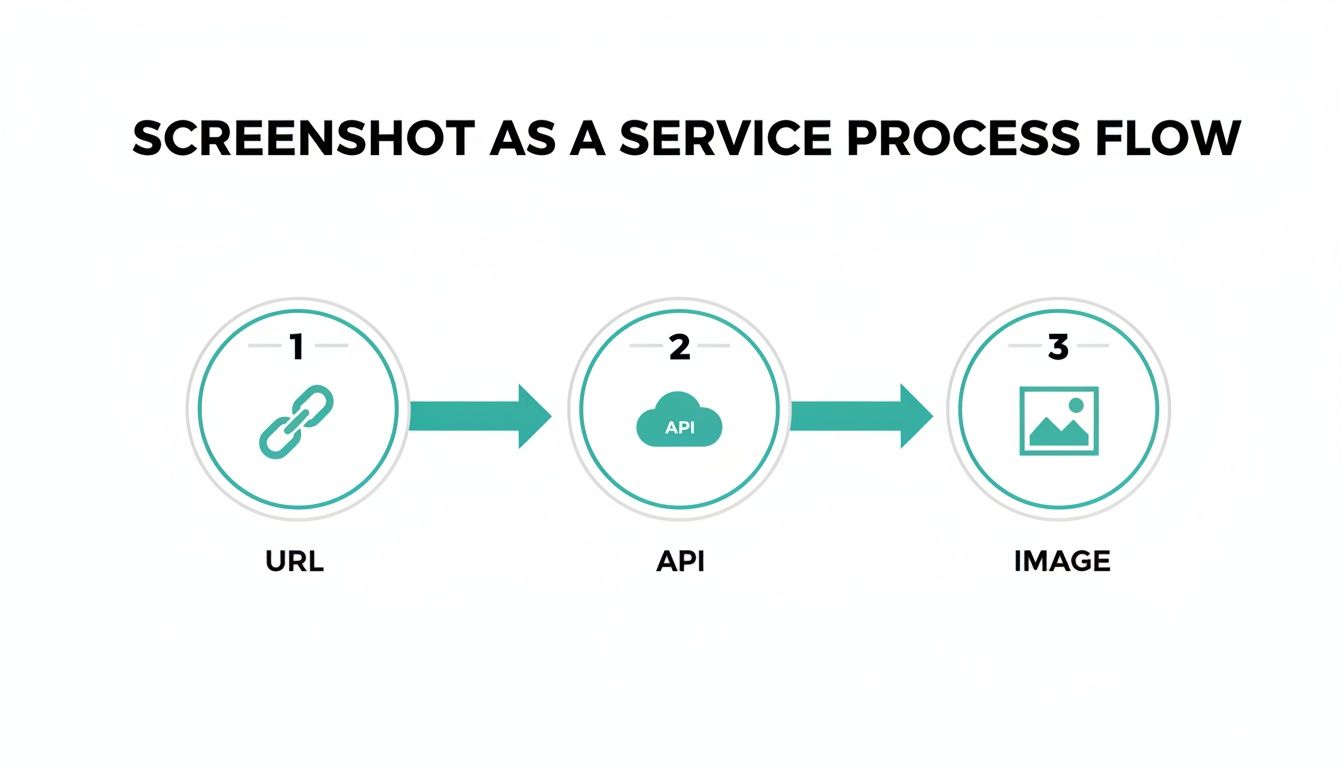
As you can see, a simple API call triggers a sophisticated backend workflow, hiding all the messy parts of browser management and rendering from you.
Advanced Rendering And Cleanup
This is where you really start to see the difference a premium service makes. It’s not just about loading the page; it's about cleaning it up based on your API parameters. These aren't trivial tasks and often represent the biggest headaches when trying to build a DIY solution.
- Ad and Banner Blocking: The service can automatically find and remove intrusive ads, cookie consent popups, and those annoying newsletter modals before taking the shot.
- Custom User Agents: You can make the headless browser identify itself as a specific device or search engine crawler by setting the user agent. This is incredibly useful for testing responsive layouts or SEO.
- Element-Specific Capture: Instead of capturing the whole page, you can zero in on a specific CSS selector (like
#main-chartor.user-profile) and grab an image of just that element.
This intelligent filtering is a huge reason developers choose a managed service. Trying to code your own solution to handle every possible popup is one of the most frustrating website screenshot challenges out there. After all that processing, the final, clean image is captured and sent back in the API response, ready to use.
The entire process—provisioning, navigating, waiting, cleaning, and capturing—really highlights the power of abstraction. It takes a thorny engineering problem and transforms it into a single, predictable API call.
The growth in this space is impossible to ignore. The global API Management Market is expected to jump from $7.1 billion in 2025 to a massive $58.7 billion by 2034. This boom is driven by developers embedding powerful endpoints, like a screenshot API, to handle mission-critical tasks like visual regression testing and real-time monitoring.
Once the job is done, the browser instance is securely shut down, keeping resources managed efficiently and ready for the next request.
Where Automated Screenshots Really Shine
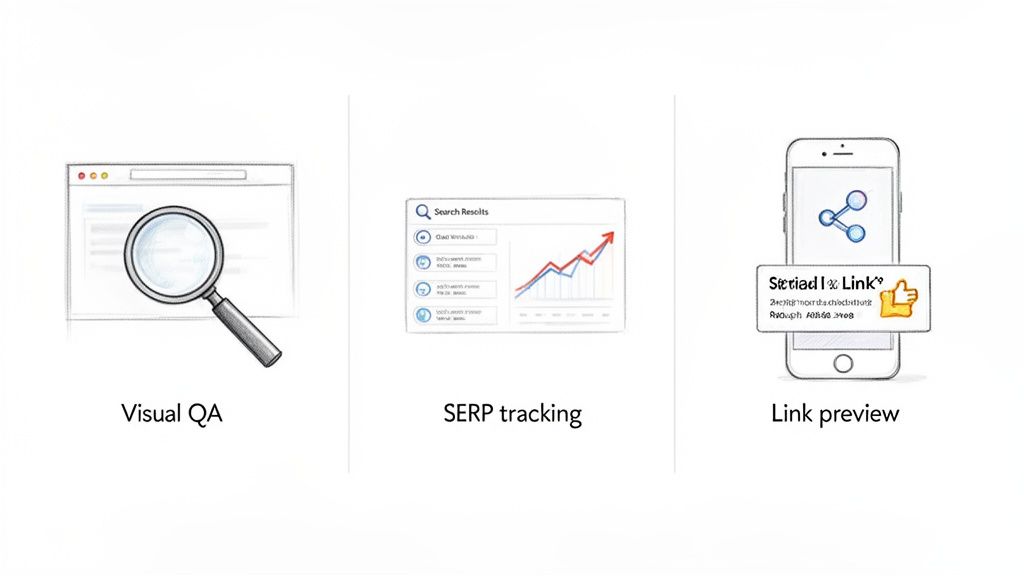
While the tech behind it is cool, the real value of a screenshot as a service is how it solves concrete business problems. This is what takes automated image capture from a neat trick to a fundamental tool for modern development, marketing, and data teams. Let's dig into a few real-world scenarios where this service is a total game-changer.
Catching Bugs With Visual Regression Testing
Imagine a QA team at a fast-growing e-commerce company, gearing up for a huge site redesign. In the past, this meant a nightmare of manual checks—endless clicking across different browsers and devices, just hoping to spot visual glitches before they hit customers.
Now, they’ve wired a screenshot API directly into their CI/CD pipeline.
Every time a developer pushes new code, an automated script fires up. It tells the API to grab snapshots of key product and checkout pages across all the different viewports they support. These new images are then instantly compared against a set of "golden" baseline screenshots. If a button is off by a few pixels or a font is broken, the system flags it immediately and automatically creates a bug report, complete with the visual proof. This is visual regression testing, and it turns a tedious, error-prone chore into a reliable, automated safety net.
Keeping An Eye On Marketing And SEO
Now, picture a digital marketing agency juggling SEO for a dozen clients. They need to know, day in and day out, how their clients rank on search engine results pages (SERPs) for their most important keywords. They also need to watch what competitors are doing with their landing pages.
Instead of paying someone to manually google keywords and take screenshots, they set up a scheduled task. Every morning, a script calls the screenshot API to capture the first page of Google for their target keywords, creating a time-stamped visual record of their clients' rankings. At the same time, it snaps pictures of competitor homepages and pricing pages, building a historical archive of everything happening in their market.
A screenshot API gives marketing teams an undeniable source of truth. It’s not just about data points in a spreadsheet; it’s a visual log of their digital battlefield, showing exactly what potential customers saw on any given day.
This gives them hard evidence for client reports and helps them spot competitive strategies they might have otherwise missed. They can even use an API's element capture feature to grab just the "featured snippet" from a SERP or a specific pricing table from a rival's site, zeroing in on what truly matters.
Making Social Media And Content Platforms Better
Ever wonder how platforms like Slack, X (formerly Twitter), or LinkedIn create those nice link previews? When you paste a URL, a rich preview with an image and title pops up almost instantly. That magic is very often powered by a screenshot as a service.
When a user shares a link, the platform's backend makes a quick API call. In milliseconds, it captures a clean, perfectly cropped image of the destination page, creating a far more engaging experience than a boring old text link.
This is a make-or-break feature for any platform that depends on user-generated content. Without a service like this, they’d be stuck with two bad choices:
- No Previews: Links would look terrible and kill user engagement.
- Build It Themselves: They would have to stand up and maintain a complex, expensive infrastructure of headless browsers just for this one feature.
A managed screenshot API offers a simple, scalable, and cost-effective way out, letting them focus on their core product while still delivering a polished experience.
Staying Compliant And Sourcing AI Data
The uses for screenshot APIs go way beyond dev and marketing. They’re also critical for more specialized fields like legal compliance and artificial intelligence.
For companies in heavily regulated industries like finance or pharma, keeping an exact historical record of their website isn't just a good idea—it's often a legal requirement. They can use a screenshot API to archive their entire public-facing site daily, weekly, or monthly. These full-page captures serve as solid proof of what information was available to the public at a specific time, which is invaluable during an audit or legal dispute.
Meanwhile, AI and machine learning companies need a staggering amount of high-quality training data. A screenshot API is the perfect tool for gathering clean visual data from the web at a massive scale. By capturing thousands of websites, they can train models to understand page layouts, identify UI elements, or even spot phishing sites. The API’s ability to block ads and popups ensures the data is clean and consistent, which directly leads to more accurate and reliable AI.
Getting a Screenshot API into Your Workflow
Alright, let's move from theory to practice. This is where a screenshot-as-a-service really starts to shine, because getting it integrated into your app is surprisingly quick. We're talking minutes, not hours. The whole point is to skip the headache of setting up headless browsers yourself and just get the images you need.
The first step, no matter which service you use, is grabbing your API key. Think of this as your unique password; it authenticates your requests and connects them to your account. With a service like ScreenshotEngine, you'll find this key waiting for you on your dashboard right after you sign up.
Once you have your key, you're ready to make your first API call. This is just a simple request sent to a specific URL, along with a few parameters telling the service exactly what you want to capture.
Making Your First API Request
The fastest way to see this in action is with a cURL command right from your terminal. It’s a great way to kick the tires and see an instant response without writing a single line of application code.
Here’s a basic cURL request to grab a full-page screenshot of a website.
curl "https://api.screenshotengine.com/v1/screenshot?url=https://www.example.com&full_page=true"
-H "Authorization: Bearer YOUR_API_KEY"
-o example-screenshot.png
This command tells the API to capture the entire height of example.com and save the image as example-screenshot.png. This kind of immediate feedback is perfect for experimenting with different options and seeing what you get back.
Code Examples for Common Jobs
While cURL is great for a quick test, you'll eventually want to plug this into your actual codebase. Any good screenshot service will offer clear code examples in different languages to make this as easy as copy-and-paste.
Let’s look at a common task—capturing a mobile view—using both JavaScript (Node.js) and Python.
JavaScript (Node.js) Example
This little snippet shows how to request a screenshot that mimics an iPhone X viewport and save it as a file. Notice how we use the width and height parameters to get that specific mobile-sized capture.
const axios = require('axios'); const fs = require('fs');
const apiKey = 'YOUR_API_KEY'; const urlToCapture = 'https://www.example.com';
const options = {
url: 'https://api.screenshotengine.com/v1/screenshot',
params: {
url: urlToCapture,
width: 375,
height: 812
},
headers: {
'Authorization': Bearer ${apiKey}
},
responseType: 'stream'
};
axios.request(options).then(response => { response.data.pipe(fs.createWriteStream('mobile-capture.png')); console.log('Screenshot saved!'); });
Python Example
Here's the exact same workflow, but in Python. The logic is identical: build the request with the right parameters, add your API key for authentication, and then handle the image data the API sends back.
import requests
api_key = 'YOUR_API_KEY' url_to_capture = 'https://www.example.com'
api_url = 'https://api.screenshotengine.com/v1/screenshot' params = { 'url': url_to_capture, 'width': 375, 'height': 812 } headers = { 'Authorization': f'Bearer {api_key}' }
response = requests.get(api_url, params=params, headers=headers, stream=True)
if response.status_code == 200: with open('mobile-capture.png', 'wb') as f: f.write(response.content) print('Screenshot saved!') else: print(f"Error: {response.status_code}")
For a deeper dive into more advanced options, you can always check out a more detailed guide on how to use a website screenshot API which covers even more use cases.
Developer Best Practices
When you're integrating any third-party API, a few good habits will save you a lot of trouble later on.
Security First: Never, ever hardcode your API key in your source code. Store it in an environment variable instead. This simple step keeps your key from being accidentally leaked if your code ends up in a public repository.
It’s also smart to build some basic error handling into your code. APIs can fail for all sorts of reasons—an invalid URL, a network timeout, you name it. Your app should be ready to catch non-200 status codes and react gracefully, whether that means logging the error or trying the request again.
To make things even easier, many services provide excellent documentation and examples. Check out resources like PixelPanda's developer resources to see how clear guidance can make these tasks feel almost trivial.
Choosing Between A Managed Service And A DIY Solution
When your project needs automated screenshots, you’ll inevitably hit a classic engineering crossroads: build versus buy. On one side, you have powerful, free tools like Puppeteer and Playwright that promise total control. On the other, a managed screenshot as a service offers speed and simplicity right out of the box.
The right answer really depends on one thing: how you value your team's time.
The True Cost Of A Self-Hosted Solution
Going the DIY route is a lot like deciding to build your own custom server from scratch. You get to hand-pick every component, giving you ultimate control over the final product. But this path also means you’re on the hook for everything that comes next—the setup, the maintenance, and every middle-of-the-night emergency.
At first, building your own screenshot service with a headless browser seems pretty simple. You spin up a server, install a library, and write a script. The initial setup might just take a day. But the real costs aren't in the setup; they creep in over time as ongoing maintenance and late-night troubleshooting sessions.
This hidden "maintenance tax" is where the real work begins:
- Infrastructure Headaches: You're now responsible for provisioning servers, patching security vulnerabilities, and figuring out how to scale. As your need for screenshots grows, so does the complexity of your setup.
- Dependency Hell: Headless browsers are notoriously finicky. A new Chrome update can suddenly break your scripts, forcing your engineers to drop everything to fix a tool that isn't even part of your core product.
- Chasing Ghosts: You'll eventually run into hard-to-debug problems like memory leaks, zombie browser processes, and websites that just randomly fail to render correctly. These issues can bring your whole service to a halt.
A DIY solution gives you complete control, but it also saddles your team with the full operational burden of a complex, resource-intensive service. Every hour spent debugging a headless browser is an hour not spent improving your own application.
The Simplicity Of A Managed Service
In contrast, using a managed service like ScreenshotEngine is like leasing a high-performance car instead of building one. You get all the power and reliability you need, but you never have to worry about changing the oil or fixing the engine. The service bundles all that complex infrastructure behind a clean, simple API endpoint.
This approach flips the script, trading unpredictable engineering hours for a predictable operational expense. Yes, you pay a subscription fee, but you gain huge advantages in speed, reliability, and focus. Your developers can integrate a production-ready screenshot API in minutes, not weeks, and can sleep soundly knowing a browser update won't break their workflow.
Let's put these two approaches head-to-head to see how they really stack up.
Managed API vs Self-Hosted Solution Cost And Effort Breakdown
This table breaks down the key factors to consider when choosing between a managed screenshot API and a self-hosted headless browser solution. The focus here is on the total cost of ownership—not just the sticker price, but the real cost in engineering effort and time.
| Consideration | Managed Screenshot Service (e.g., ScreenshotEngine) | Self-Hosted Solution (e.g., Puppeteer on a server) |
|---|---|---|
| Upfront Cost | Low: Usually a free tier or a small subscription to start. | High: Requires significant engineering time for setup, plus server costs. |
| Ongoing Cost | Predictable: Based on your API usage, so you only pay for what you use. | Variable: Fluctuating server bills plus the hidden cost of engineering time for maintenance. |
| Maintenance | Zero: The provider handles all updates, patches, and infrastructure management. | High: A constant cycle of updating browsers, managing dependencies, and fixing bugs. |
| Scalability | Effortless: Automatically handles huge spikes in volume without any work on your end. | Manual: You have to provision and manage more servers yourself as demand grows. |
| Time to Market | Fast: Go from zero to production-ready screenshots in minutes. | Slow: Can take weeks of development, testing, and infrastructure setup. |
Ultimately, the decision boils down to what your team is best at. If your core competency is building and managing complex, scalable infrastructure, a DIY solution might make sense. For most teams, however, a managed screenshot as a service is a much faster, more reliable, and cost-effective way to get the job done so you can focus on building your own product.
How To Select The Right Screenshot Service Provider
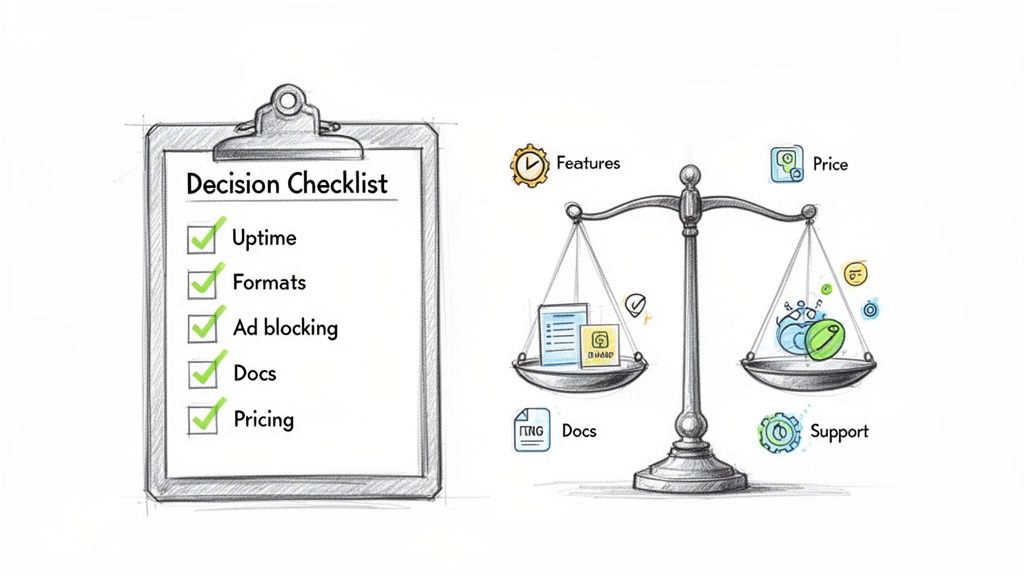
So, you've decided a managed service is the way to go. Smart move. Now comes the hard part: picking the right one. The truth is, not all screenshot APIs are built the same, and a poor choice can saddle you with flaky results, a miserable integration experience, and unexpected bills.
Think of this as choosing a critical piece of your infrastructure. You need to dig into the core technical specs first. Speed and reliability are table stakes. Does the provider openly share their uptime stats? What are their average response times? An API that takes several seconds to generate an image will quickly become a performance killer in your app.
Once you've vetted the basics, look at the flexibility of the API. A simple snapshot is easy, but real-world use cases demand more control.
- Image Format Options: Are you stuck with old-school PNG and JPEG, or can you request modern formats like WebP to optimize load times?
- Advanced Rendering: Does the service handle the messy parts of the web, like blocking ads or automatically dismissing cookie banners? Getting clean, consistent screenshots depends on it.
- Element Capture: Can you zero in on a specific CSS selector? This is a game-changer when all you need is an image of a single chart, a user profile card, or a product image.
Evaluating The Developer Experience
A powerful API means nothing if your team can't figure out how to use it. The developer experience is often the difference between a ten-minute integration and a week-long headache.
Look for signs that a provider actually cares about developers. Is the documentation clear, with copy-paste-ready code examples in your team's preferred language? Even better, do they offer an interactive API playground? Being able to test parameters and see the results instantly—without writing a single line of code—is a massive win for productivity.
Key Insight: The quality of a provider's documentation and developer tools is often a direct reflection of the quality of the API itself. Clear guides and an easy-to-use playground show a commitment to helping developers succeed.
Don't forget to scrutinize the pricing model. You want something predictable, not a black box that spits out a surprise bill at the end of the month. Avoid services with confusing tiers or hidden overage fees. A good provider will have a straightforward plan, often with a generous free tier, that lets you get started without friction and scale your costs predictably. To get a head start, you can check out a detailed comparison of the best screenshot API services available.
Support And Scalability Considerations
Finally, think about this as a long-term relationship. What happens when something goes wrong? Is there a public status page? Can you get a hold of a real human for support? Knowing you have a reliable team to back you up when you're troubleshooting is invaluable.
You also need to think about where your project will be in a year or two. The service you choose should be built on an architecture that can handle sudden traffic spikes without breaking a sweat. Picking a scalable and well-supported screenshot as a service provider like ScreenshotEngine from day one will save you the agony of a forced migration later on.
Frequently Asked Questions
It's natural to have questions when you're looking at a new tool like a screenshot as a service API. Let's get right into some of the most common things developers ask, so you can figure out if it's the right fit for your project.
How Do These APIs Actually Capture Modern JavaScript Websites?
This is probably the biggest question on everyone's mind. We've all tried to capture a single-page app (SPA) built with React or Vue and ended up with a blank white screen. If a simple script can't do it, how does an API get it right?
The secret is that professional screenshot services don't just "visit" a URL and snap a picture. Their headless browsers are smarter than that. When a request comes in, the service actively waits for the page to become fully interactive—for all that asynchronous JavaScript to run and for the page to "hydrate." It waits for the network to quiet down before taking the shot. This ensures the final image is what a real user would actually see, not just the initial HTML skeleton.
The Takeaway: A good screenshot service doesn't just load a page; it interacts with it. It patiently waits for all the dynamic bits and pieces to fall into place before capturing a pixel-perfect result. This is a must-have for capturing any modern web app.
Which Image Format Is Best: PNG, JPEG, Or WebP?
There's no single "best" format—it's all about what you need the screenshot for. Choosing the right one is a classic trade-off between image quality and file size.
PNG (Portable Network Graphics): Go with PNG when you need perfect quality, no exceptions. It uses lossless compression, so not a single pixel is out of place. This makes it the ideal choice for visual regression testing, legal archives, or any situation where absolute accuracy is key. The only catch is that the file sizes are bigger.
JPEG (Joint Photographic Experts Group): JPEG is your workhorse for smaller files. It uses lossy compression to shrink things down, which is perfect for social media previews, thumbnails, or anywhere else that a tiny bit of quality loss is a fair trade for faster loading times.
WebP: This is Google's modern answer to image formats, and it's a fantastic all-rounder. WebP can do both lossless and lossy compression, and it consistently produces smaller files than PNG and JPEG at similar quality levels. If you're embedding these images on a website, WebP is almost always the way to go.
What About API Rate Limits and Security?
Handing over URLs to a third-party service definitely brings up questions about usage limits and security. Any solid provider will be upfront about their rate limits, which are there to keep the service stable for everyone. These limits are usually quite high, and you can almost always get them increased if you have a high-volume project.
On the security front, the service only ever sees the public-facing content of the URL you send. Nothing sensitive is stored. The headless browser that takes the screenshot is spun up just for your request and then securely destroyed immediately after the image is sent back to you. Just make sure you pick a service with a clear and transparent data handling policy.
Ready to stop wrestling with headless browsers and start getting perfect screenshots with a single API call? Give ScreenshotEngine a try for free and see just how easy it is to automate your visual workflows.