Archiving a web page means saving it in a way that preserves its content and structure for later, whether that's for offline access or as a historical record. You can save pages as simple HTML files, PDFs, or high-fidelity images. Today, this is done using everything from browser extensions and command-line tools like wget to sophisticated APIs that can capture even the most complex, JavaScript-driven applications.
Why Modern Web Archiving Is More Than Just a Screenshot
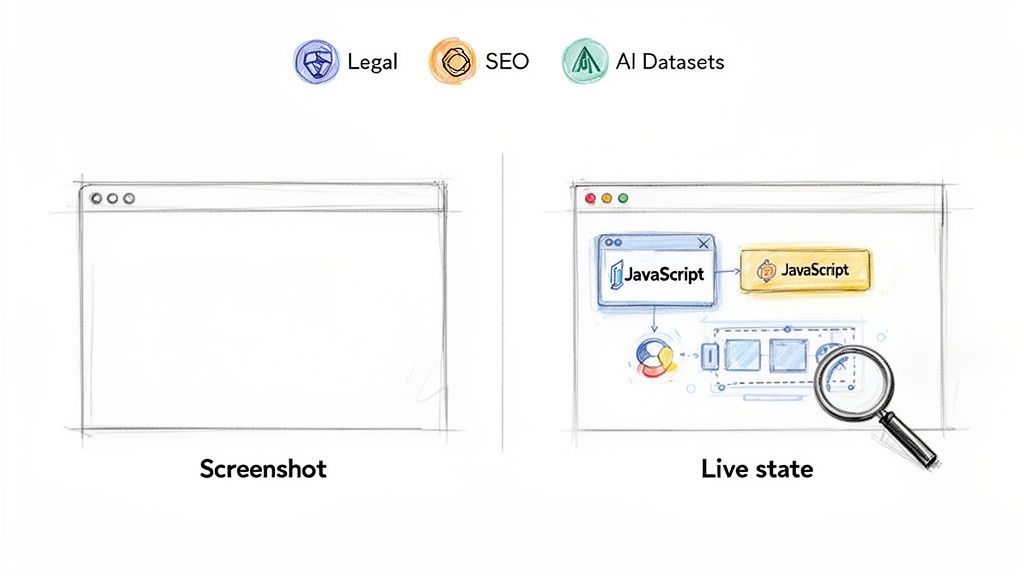
Taking a screenshot of a website is like snapping a photo of a storefront. You capture what it looks like in a single moment, but you miss everything happening inside. True web archiving, on the other hand, is like saving the store itself—the layout, the products on the shelves, and even the interactive displays. It preserves not just the visual appearance but the underlying code, assets, and functionality that make the page tick.
Modern websites aren't static documents; they're complex, living ecosystems. They're packed with interactive charts, animations triggered by user actions, and content pulled in dynamically from other services. A simple image misses all of that, leaving you with a flat, incomplete, and often misleading record. This is exactly why developers and organizations need solid methods to archive web pages properly.
The Driving Forces Behind Archiving
The need for accurate web archiving goes far beyond just keeping personal bookmarks. There are some serious business and technical reasons why this has become such an essential practice.
- Legal and Compliance: In many industries, you’re legally required to keep records of digital communications, and that includes your website content. An unchangeable, timestamped archive is critical for e-discovery and regulatory audits.
- Competitive Analysis: Marketers and product teams constantly archive competitor websites. This lets them track changes in pricing, messaging, and feature rollouts over time, which provides invaluable strategic insight.
- SEO and Performance Validation: Saving a snapshot of search engine results pages (SERPs) or your own site before and after a major update is a great way to validate your SEO efforts or troubleshoot performance issues.
- AI and Machine Learning: Researchers and data scientists build massive datasets by archiving web pages. These collections of text, images, and HTML are the raw material used to train large language models (LLMs) and computer vision systems.
The demand for this is growing like crazy. The global market for enterprise information archiving was valued at USD 9.46 billion and is expected to jump to USD 30.17 billion by 2033. That growth is a direct result of the explosion of digital content that companies now need to preserve. You can find more insights on the enterprise archiving market growth on straitsresearch.com.
A web archive is a time capsule. It doesn't just show you what a page looked like; it preserves the digital context, code, and assets, providing a high-fidelity record that a simple screenshot can never match.
This guide will walk you through the full spectrum of techniques for how to archive web pages, covering everything from quick browser-based methods to powerful, programmatic solutions. We’ll look at practical, real-world scenarios to help you pick the right tool for whatever archiving challenge comes your way.
Quick And Simple Browser-Based Archiving Techniques
Sometimes, you just need a quick, no-fuss copy of a web page. Maybe it's a competitor's landing page, a crucial piece of online documentation, or an article you want to read offline. In these cases, you don't need a complex setup; your web browser already has everything you need to get started.
The most direct method is the classic "Save Page As" feature, which you'll typically find by right-clicking on a page or under the "File" menu. But the option you choose here really matters.
Understanding HTML Complete vs. HTML Only
When you save a page, your browser usually gives you two choices. Choosing "Webpage, Complete" is what most people want—it downloads the main HTML file plus a separate folder packed with all the page’s assets. This means images, CSS files for styling, and even JavaScript. The result is a high-fidelity, interactive copy that looks and feels almost exactly like the live version, even when you're offline.
On the other hand, selecting "Webpage, HTML Only" does exactly what it says. It saves a single, lightweight HTML file containing just the text and basic structure. It’s incredibly fast and creates a tiny file, but be warned: when you open it, it will look completely broken. All the styling, images, and layout information will be gone. This option is really only useful if you're a developer who needs to inspect the raw markup or if you only care about grabbing the text content.
For preserving a page with its full visual context for offline viewing, "Webpage, Complete" is your best bet. If you just need the raw text and markup for analysis, "HTML Only" is more efficient.
The Power of Printing to PDF
Another incredibly useful tool hiding in plain sight is your browser's print function. Instead of sending a page to a physical printer, you can choose "Save as PDF" to create a static, unchangeable snapshot. This is my go-to method for compliance records, reports, or legal documentation because PDFs are self-contained and look the same everywhere.
Here's a pro tip: before you hit save, look for a "Simplify" or "Reader Mode" option in the print dialog. This little feature is a game-changer. It strips out all the junk—ads, sidebars, navigation menus—and leaves you with a clean, beautifully formatted document focused purely on the core content.
For a deeper dive into visual capture techniques, our guide on how to screenshot a webpage covers even more ground.
Comparing Manual Web Archiving Methods
To make sense of these built-in options, here's a quick look at where each one shines and what its limitations are.
| Method | Best For | Pros | Cons |
|---|---|---|---|
| Save As: Complete | High-fidelity offline copies of individual pages with interactivity. | Preserves original layout, images, and some JavaScript functionality. | Creates a messy folder of assets; links can break easily. |
| Save As: HTML Only | Grabbing just the raw text and underlying code structure. | Creates a single, tiny file; very fast. | Visually broken; loses all styling, images, and layout. |
| Print to PDF | Creating static, unchangeable records for legal or reporting. | Self-contained, portable, and renders consistently. Can be simplified. | Not interactive; loses all dynamic content and functionality. |
Each of these browser-native methods offers a solid starting point for simple archiving tasks, but they all have their trade-offs.
Enhancing Your Workflow with Browser Extensions
When your browser's built-in tools can't quite handle the job—especially with complex, JavaScript-heavy sites or those dreaded infinite-scroll pages—it's time to call in some help. A few specialized browser extensions can make all the difference.
SingleFile: This extension is brilliant. It takes an entire webpage and neatly bundles everything—HTML, CSS, images, fonts—into a single, self-contained HTML file. It cleverly embeds all assets directly into the code, solving the annoying "separate folder" problem you get with the native "Save As Complete" option.
GoFullPage: Sometimes, an HTML or PDF copy just doesn't cut it. When you need a perfect visual record of a page from top to bottom, this is the tool. It takes a pixel-perfect, full-length screenshot, reliably handling tricky elements like sticky headers and images that only load as you scroll. It’s my go-to for visual archiving.
Scaling Up: Automating Full Site Archives
Saving a page here and there is fine, but what if you need a complete snapshot of an entire website? Manually capturing hundreds—or even thousands—of pages just isn't feasible. For that, you need to bring in the heavy hitters: command-line tools designed to mirror entire sites with a single, powerful command.
Two of the most reliable and battle-tested tools for this job are HTTrack and wget. These are workhorses for anyone who needs a complete, browseable offline copy of a website for backups, analysis, or historical records. They crawl a target site, downloading all the HTML, CSS, JavaScript, and images, and then cleverly rewrite the internal links so everything works perfectly on your local machine.
Before we dive into the command line, it's helpful to see where these tools fit in. The methods we've discussed so far—from a simple HTML save to a browser extension—are great for one-off captures.
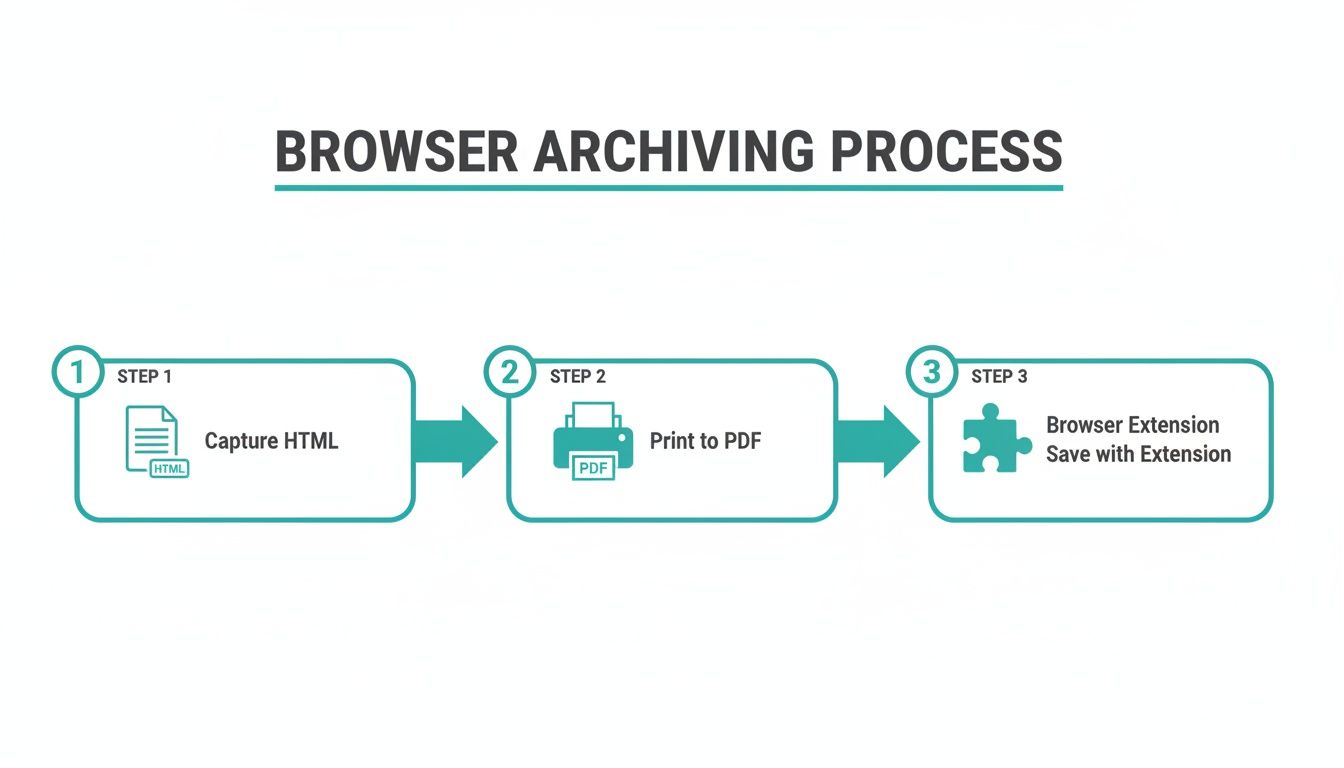
This graphic really shows the progression from basic to more robust single-page methods. But now, we're taking the next big step into full-scale, automated archiving.
Mirroring a Whole Website with HTTrack
HTTrack is a fantastic free and open-source website copier. It’s my go-to recommendation for people who want the power of a command-line tool but appreciate a more guided experience. It even has a wizard-like interface to help you set up your first crawl.
You can kick off a basic site mirror with a simple command, but the real value is in its deep configuration options. When you're crawling a live site, you have to be a good internet citizen. Hammering a server with too many requests is a surefire way to get your IP address blocked.
Here’s a real-world example of how I’d archive a documentation site responsibly:
httrack "https://example-docs.com/" -O "./docs_archive" --robots=0 -c8 --max-rate=250000
Let's break down what's happening here, because every flag matters.
- -O "./docs_archive": This simply tells HTTrack where to save the mirrored site.
- --robots=0: This instructs the tool to ignore the site's
robots.txtfile. You should only use this ethically and when you have permission. - -c8: I’m limiting the crawl to 8 simultaneous connections. This is a crucial step to avoid overwhelming the server.
- --max-rate=250000: This caps the download speed at 250 KB/s, another way to fly under the radar and crawl respectfully.
Fine-tuning these settings is the key to successfully archiving large sites without causing disruption. It’s what separates a professional archiving job from a clumsy, brute-force download.
The Power of Wget for Recursive Downloads
For those of us who practically live in the terminal, wget is an old friend. It's a non-interactive network downloader that’s lean, mean, and incredibly scriptable. While it might seem simpler than HTTrack on the surface, its recursive download capabilities are more than enough for most full-site archiving jobs.
The trick is to use the right combination of flags to make wget behave like a true site crawler instead of just a file downloader.
Let's say you want to archive your favorite blog. This is the command I'd build:
wget --recursive --no-clobber --page-requisites --html-extension --convert-links --domains exampleblog.com --no-parent https://exampleblog.com
I know, that looks like a mouthful. But each part of that command is doing a very specific, important job to create a perfect offline copy.
--recursiveis the magic flag that starts the crawl.--no-clobberis a lifesaver—it won't re-download files you already have.--page-requisitespulls in all the necessary assets like CSS, JS, and images.--convert-linksis absolutely essential. It rewrites links to point to the local files, making the archive browsable offline.--domains exampleblog.comkeeps the crawler from wandering off to external sites.--no-parentstops it from going "up" a directory structure, keeping the crawl tightly focused.
With one command, you get a completely self-contained, clickable version of the entire site on your hard drive. Both HTTrack and wget are serious tools for when you need to archive web pages at scale, moving you far beyond the limits of browser-based saving.
Mastering Dynamic Sites with Programmatic APIs
Sooner or later, you'll find that command-line tools like wget and HTTrack just can't keep up. They hit a wall with modern JavaScript. That's because today’s websites are less like static documents and more like full-blown applications running right in your browser. The content you see often loads, shifts, and appears only after complex scripts have done their work.
For these dynamic, interactive sites, you need a smarter way to archive them—one that can render the page exactly as a user would see it in their browser.
This is where programmatic APIs come into their own. Instead of just grabbing raw HTML, these services operate a fleet of headless browsers in the cloud. You feed them a URL through a simple API call, and they send back a perfect, pixel-for-pixel capture of the fully rendered page. It's the most reliable way to handle archiving at scale, especially when you're trying to bake it into an automated workflow.
Why an API is the Way to Go for Modern Web Archiving
Trying to wrangle headless browsers like Puppeteer or Playwright on your own servers can quickly turn into a nightmare. You’re suddenly responsible for managing dependencies, scaling infrastructure, and dealing with random browser crashes.
Handing this off to a dedicated API provider sidesteps all that mess. You get a clean, dependable method for capturing exactly what a user sees.
This approach easily handles:
- JavaScript-Rendered Content: It captures charts, interactive maps, and data grids that are populated on the fly.
- Single-Page Applications (SPAs): It has no problem rendering sites built on frameworks like React, Vue, or Angular.
- Annoyance-Free Captures: Many services, like ScreenshotEngine, are smart enough to automatically block ads, cookie banners, and popups, giving you a clean visual record every single time.
A screenshot API doesn't just take a picture; it captures the final, browser-rendered state of a page. This makes it by far the most accurate method for visually archiving dynamic web applications.
A Practical Example with ScreenshotEngine
Let's imagine a common scenario: you need to monitor competitor pricing on an e-commerce site where prices are loaded with JavaScript. A simple wget command would completely miss this critical data.
Using a tool like ScreenshotEngine, you can make a quick API call from your backend code to get a visual snapshot. Here’s a simple Python script using the requests library to do just that:
import requests
api_key = 'YOUR_API_KEY' url_to_capture = 'https://example.com/product-page'
api_url = f"https://api.screenshotengine.com/v1/screenshot?token={api_key}&url={url_to_capture}"
response = requests.get(api_url)
if response.status_code == 200: with open('product_page_archive.png', 'wb') as f: f.write(response.content) print("Screenshot saved successfully!") else: print(f"Error: {response.status_code}")
That little bit of code sends the target URL to the API and saves the resulting image. Just like that, you have a perfect, timestamped visual record without ever having to manage a headless browser yourself. If you want to dig deeper into the various parameters and options, you can find great resources explaining how a screenshot API works in practice.
Here’s a look at the ScreenshotEngine API playground, which is a great way to test out your capture settings before writing any code.
You can use the interface to set the URL, pick an output format like PNG or WebP, and tweak advanced settings like full-page capture or dark mode to generate the exact API request you need.
Advanced Archiving with API Parameters
The real power of using an API is the fine-grained control it gives you over the final output. You’re not just stuck with a generic screenshot of whatever is visible in the browser window.
Most APIs let you pass in advanced options to get exactly what you need:
- Target Specific Elements: Want to capture just a single chart or a user comment section? You can often do that by providing a CSS selector (e.g.,
&selector=.stock-chart). - Full-Page Captures: This is incredibly useful for archiving long articles or product listings. You can get a complete vertical snapshot of a page from top to bottom.
- Custom Resolutions: Need to see how a page looks on a specific device? You can emulate different screens (mobile, tablet, desktop) to archive responsive designs.
This corner of the tech world is growing fast, largely because the web itself keeps getting more complex. According to some insights on the growing data archiving market, the data archiving service market is projected to hit $10.56 billion with an 11.4% growth rate. As the volume of web data explodes, AI-powered tools are becoming necessary just to classify and manage it all.
Programmatic APIs deliver the precise, high-fidelity visual data that these advanced systems need, making them an indispensable tool for anyone serious about archiving the modern web.
Organizing Your Web Archives for Long-Term Value
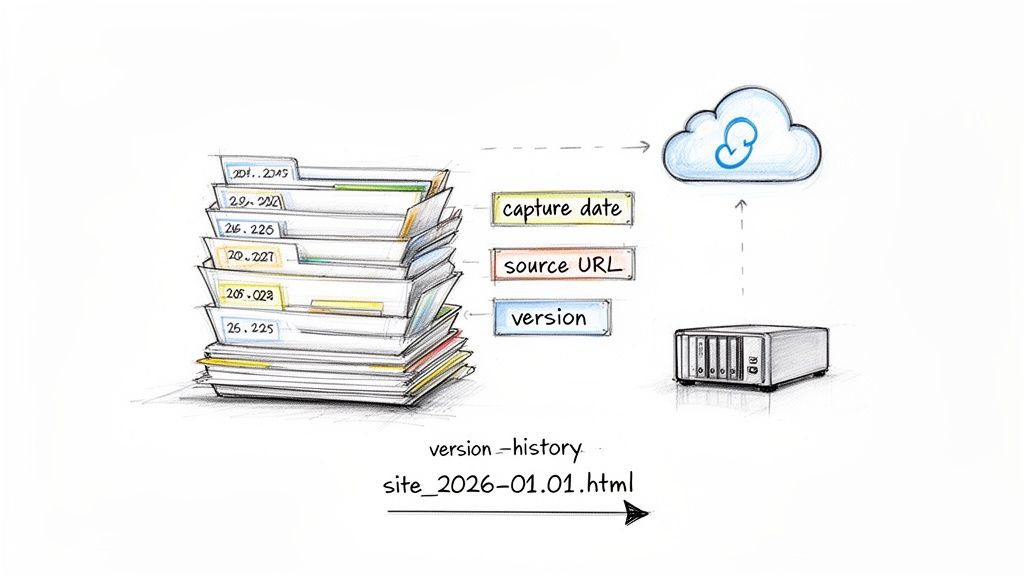
Capturing a web page is really just the first step. Without a system, you'll end up with a chaotic folder of HTML files and screenshots—a digital junk drawer where nothing can be found. To make all that effort worthwhile, you need to be deliberate about how you organize everything. A smart organization strategy is what turns a simple pile of files into a valuable, searchable record.
It all starts with a consistent and descriptive naming convention. Calling a file archive-1.html or screenshot.png is a surefire way to create headaches for your future self. A better approach is to bake useful information right into the filename.
I’ve found a simple, battle-tested format that works wonders: YYYY-MM-DD_domain-name_short-description.format. For instance, a snapshot of a product page might become 2024-09-15_example-com_pricing-page.html. This structure alone makes your collection instantly sortable by date and gives you context at a glance.
Building a Logical Directory Structure
With a solid naming convention in place, the next move is to create a logical folder structure. Dumping thousands of captures into one directory just isn't sustainable. A nested, hierarchical approach is far more manageable as your collection grows.
Think about how you'll need to find things later. A common and highly effective method is to create top-level folders for each domain, then break those down by year and month.
archive/example-site-one.com/2024/09/2024-09-15_homepage.png2024-09-15_about-us.html
10/
2023/
another-site.net/2024/
This keeps everything clean and makes it incredibly easy to track down a capture from a specific site within a certain timeframe. To keep your whole system in check, it’s worth brushing up on essential document management best practices.
Think of your archive as a dataset of the past. By embedding metadata like dates and sources into your file and folder names, you're not just storing files—you're creating a structured, queryable history of the web.
Choosing the Right Storage Solution
Where you keep your archive is just as important as how you organize it. The best solution really depends on the scale of your project and your need for access and long-term durability.
Local Storage (External Hard Drives): This is perfect for smaller, personal projects. It’s cheap, fast, and you have total control. The downside? It's vulnerable to hardware failure and isn't easily accessible from anywhere else.
Network Attached Storage (NAS): A NAS is essentially your own private cloud. It gives you centralized storage for a home or office, often with redundancy options (like RAID) to protect against a failing disk. It's a great middle-ground for serious hobbyists or small teams.
Cloud Storage (Amazon S3, Google Cloud Storage): For large-scale or automated archiving, nothing beats the cloud. You get virtually unlimited capacity, incredible durability (Amazon S3 boasts 99.999999999% durability), and you can access your files from anywhere. This is the professional standard for any serious, long-term archiving.
The Importance of Metadata and Versioning
Beyond filenames, embedding metadata directly inside your archived files adds another layer of invaluable context. If you're saving raw HTML, a simple comment block at the top can be a lifesaver.
This self-contained documentation ensures that crucial details travel with the file, no matter where it ends up.
Finally, always be thinking about versioning. Websites change, and the whole point of an archive is often to track that evolution. By regularly capturing the same page and saving it with your date-based naming scheme, you're automatically building a version history. This lets you easily compare a page from one month to the next, giving you powerful insights into how content, design, or even pricing has shifted over time.
Navigating the Legal and Ethical Side of Archiving
Web archiving isn't just a technical puzzle; it's a field with serious legal and ethical lines you have to navigate. Just because you can save a page doesn't always mean you should—or that you have the right to. Getting this part right is absolutely critical for keeping your projects responsible and above board.
For a growing number of businesses, archiving is a legal must-have, not a choice. This is why the enterprise information archiving market is expected to explode from USD 10.77 billion to USD 33.15 billion. Companies are racing to keep up with strict data retention laws.
In finance, for example, SEC Rule 17a-4 demands that firms keep business communications, web content included, locked down in a non-erasable format for years. Over in Europe, failing to manage data properly under GDPR can lead to fines of up to 4% of your global revenue. Suddenly, having a perfect record of your digital footprint becomes a very big deal. You can get a deeper look into the growth of the enterprise archiving market here.
Respecting Digital Boundaries
Beyond the black-and-white of the law, there's a code of conduct for good digital citizenship. The web runs on a set of rules, some written and some not, that anyone building an archive needs to follow. It’s all about not causing trouble or breaking trust.
- Pay Attention to
robots.txt: Think of this file as a "Keep Out" sign on a website's virtual lawn. It tells bots which parts of the site are off-limits. While it's not a legally enforceable contract, ignoring it is bad form and a great way to get your IP address blocked. - Read the Terms of Service: Before you kick off a massive archiving job, check the website’s terms. Many sites explicitly ban scraping or any kind of automated data harvesting. It pays to look before you leap.
- Crawl Politely: Don't slam a server with a firehose of requests. Good crawlers build in a "crawl-delay" to space out their visits, which keeps them from bogging down the site's performance. An aggressive crawl can easily take a small website offline.
This ethical mindset is especially important when you're dealing with content like social media, where user privacy and platform rules add extra layers of complexity. We actually wrote a detailed guide on how to archive social media content responsibly.
When archiving, always act as a respectful guest, not an intruder. The goal is to preserve digital history and information, not to disrupt the services you're documenting or infringe on the rights of creators and users.
Ultimately, your approach should be built on a foundation of legal diligence and ethical responsibility. This ensures the archives you create aren't just technically solid, but also legally sound and respectfully built.
Common Web Archiving Questions, Answered
As you get deeper into archiving web pages, you'll inevitably run into a few tricky situations. I've seen these same questions come up time and again, so let's tackle them head-on.
How Can I Archive a Web Page That Requires a Login?
Ah, the classic authentication wall. This is probably the most common hurdle people face.
If you're doing a one-off manual save, the fix is simple: just log in to the site in your browser first. Once you're in, use the "Save Page As..." or "Print to PDF" function. Your browser will save the page exactly as you see it, authenticated session and all.
For automated tools like wget or HTTrack, things get a bit more technical. You usually have to export your browser's session cookies and feed them to the tool with your command. It's a bit of a hassle, but it works. Programmatic tools, especially screenshot APIs, typically won't handle logins for you due to security protocols. In those cases, a manual capture is often the most reliable path.
What Is the Best Format to Save a Web Archive In?
There's no single "best" format. The right choice completely depends on why you're saving the page. Think about the job you need the archive to do.
- HTML (Complete): This is your go-to for creating a fully interactive, offline copy. If you need it to look and feel just like the live site, with working links (within the saved content), this is it.
- PDF: When you need a static, unchangeable record for legal or compliance reasons, PDF is the gold standard. It’s essentially a digital photocopy.
- High-Quality Image (PNG/WebP): Need a perfect visual snapshot? This is your best bet for things like design validation, tracking UI changes over time, or just preserving the exact look of a page.
- WARC (Web ARChive): This is the heavyweight champion for serious, large-scale archiving. A WARC file captures everything—the HTML, images, CSS, JavaScript, and even the raw HTTP request and response headers. It's what professional archives use.
Can I Archive Dynamic Content Like Videos or Interactive Maps?
This is where things get really tough. Capturing complex, dynamic elements is where most standard archiving methods stumble.
A simple "Save Page" command will almost always fail to grab streaming video or the interactive state of a map application. You'll get the container, but not the content.
Command-line tools might be able to download the video file if they can sniff out a direct link in the code, but they won't capture the player or its interactive elements. Honestly, the most practical solution here is often to take a high-resolution screenshot or even a screen recording. That way, you're capturing the visual evidence of how it looked and worked at a specific point in time.
Ready to build a reliable visual archive without the technical overhead? With ScreenshotEngine, you can automate pixel-perfect captures of any website using a simple API call. Get started for free at ScreenshotEngine.com.