
In development, quality assurance, and documentation, a clear screenshot is often worth a thousand words of explanation. From capturing complex UI bugs and archiving web pages to generating social media previews, the right tool is essential for efficient communication and record-keeping. But the landscape of screen capture tools is vast, ranging from simple desktop utilities to powerful, scalable APIs designed for high-volume automation. This guide cuts through the noise to analyze the 12 best screenshot capture software solutions available today.
We will dive deep into each option, providing direct links and visual examples to illustrate their capabilities. This isn't just a list of features; it's a comprehensive comparison focused on performance, reliability, and specific use cases. Beyond just capturing, the best software often integrates robust editing features. You might want to explore the functionalities of a dedicated screenshot editor if your workflow requires advanced annotation or manipulation after the initial capture.
Whether you're a developer automating visual regression tests, a marketer tracking SERP results, or a data scientist collecting visual training sets, this resource is designed to help you find the perfect fit. We will evaluate key aspects like API support, full-page capture, ad blocking, and pricing to pinpoint which tool aligns best with your technical and operational needs. Our goal is to equip you with the insights necessary to select a solution that seamlessly integrates into your workflow, saving you time and improving your output.
1. ScreenshotEngine: The Developer-First Screenshot API
ScreenshotEngine is a specialized, high-performance API designed for developers who need to automate website captures at scale. Unlike traditional desktop tools, this platform eliminates the need to manage complex headless browser infrastructure. It's built for programmatic use, making it the best screenshot capture software for tasks like visual regression testing, SEO monitoring, or generating dynamic link previews.
Its core strength lies in producing clean, consistent images. The API automatically blocks common obstructions like ads, cookie banners, and popups, ensuring your captures are clutter-free and ready for production use. For those new to programmatic tools, a solid grasp of REST APIs is beneficial. If you're looking to deepen your technical knowledge in this area, understanding the concept of APIs is a great starting point for leveraging tools like this effectively.
Key Features & Use Cases
- API-First Design: Integrates directly into applications using a REST API with official SDKs, perfect for automating workflows.
- Intelligent Blocking: Automatically removes ads and cookie consent banners for pristine captures.
- Flexible Capture Modes: Supports full-page, viewport, and specific HTML element (
div,section) screenshots. - Multiple Formats: Outputs images in PNG, JPEG, and WebP, with options for dark mode rendering.
Best for: High-volume, automated screenshot generation for developers, QA teams, and data scientists. It excels at tasks like monitoring SERP changes, creating visual assets for AI training, and ensuring brand consistency across web properties.
| Feature | Details |
|---|---|
| Primary Function | API for automated screenshots |
| Pros | Extremely fast and reliable; no infrastructure maintenance; produces clean, production-ready images. |
| Cons | Not a manual desktop tool; requires some coding knowledge for implementation. |
| Pricing | Starts with a free plan for 100 screenshots/month. Paid plans begin at $10/month for 5,000 screenshots. |
| Website | screenshotengine.com |
2. CleanShot X: The Premium macOS Annotation Tool
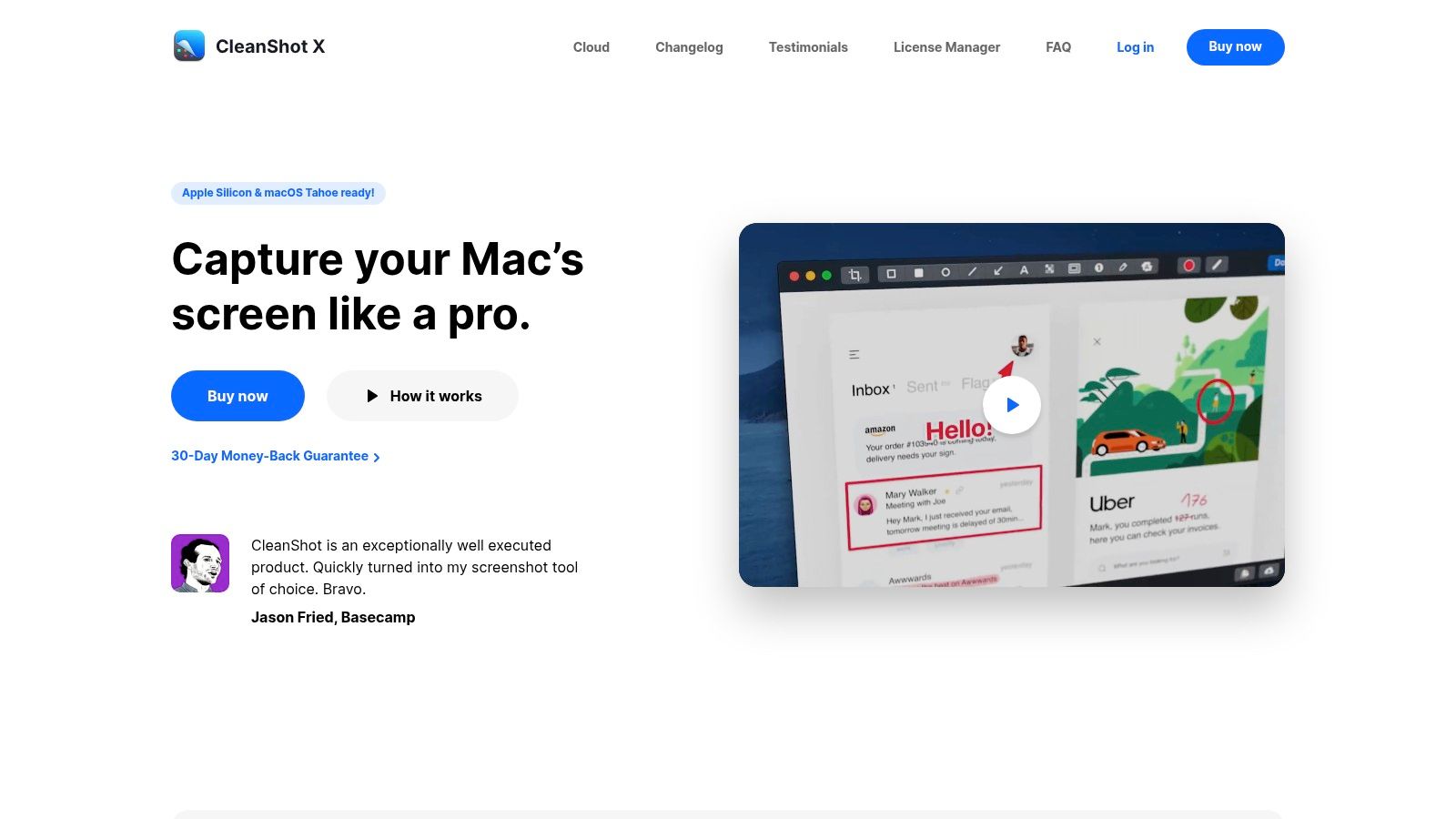
CleanShot X is a Mac-native application that elevates the standard screenshot utility into a powerful productivity tool. Designed for macOS users who need more than a simple capture, it combines screen recording, annotation, and cloud sharing into a seamless workflow. This makes it one of the best screenshot capture software choices for designers, developers, and product managers who frequently create bug reports, tutorials, or visual feedback.
Its primary advantage is the Quick Access Overlay, which appears instantly after a capture. This overlay provides immediate access to a rich set of annotation tools, cloud uploading, and other actions without cluttering your desktop. The experience is fast, intuitive, and deeply integrated into the macOS environment, offering a significant upgrade over the native snipping tool.
Key Features & Use Cases
- Advanced Capture Modes: Includes scrolling captures for long pages, timed screenshots, and OCR to extract text from images.
- Rich Annotation Suite: A comprehensive set of tools for highlighting, redacting, and adding text or shapes directly to captures.
- Integrated Cloud Sharing: Instantly upload screenshots and recordings to a dedicated cloud service with options for custom domains.
- Video and GIF Recording: Easily record screen activity, perfect for creating quick tutorials or demonstrating bugs.
Best for: Mac users, especially product teams, designers, and support specialists, who require a fast, all-in-one tool for creating annotated screenshots, GIFs, and screen recordings for communication and documentation.
| Feature | Details |
|---|---|
| Primary Function | Desktop capture and annotation tool for macOS |
| Pros | Polished Mac-native UX; excellent and immediate annotation tools; integrated cloud hosting simplifies sharing. |
| Cons | Exclusive to macOS with no Windows version; no free trial, though a 30-day money-back guarantee is offered. |
| Pricing | A one-time purchase of $29 for the app with one year of updates and 1 GB of cloud storage. An optional Pro subscription is available for more storage and advanced cloud features. |
| Website | cleanshot.com |
3. ShareX: The Ultimate Power-User Tool
ShareX is a free, open-source powerhouse for Windows that goes far beyond basic screen captures. It's renowned for its extensive post-capture automation, making it one of the best screenshot capture software choices for power users, QA testers, and anyone who needs a highly customizable workflow. Unlike simple screen grabbers, ShareX lets you build multi-step actions that run automatically after taking a screenshot, such as adding annotations, applying a watermark, and uploading the file to a specific destination.
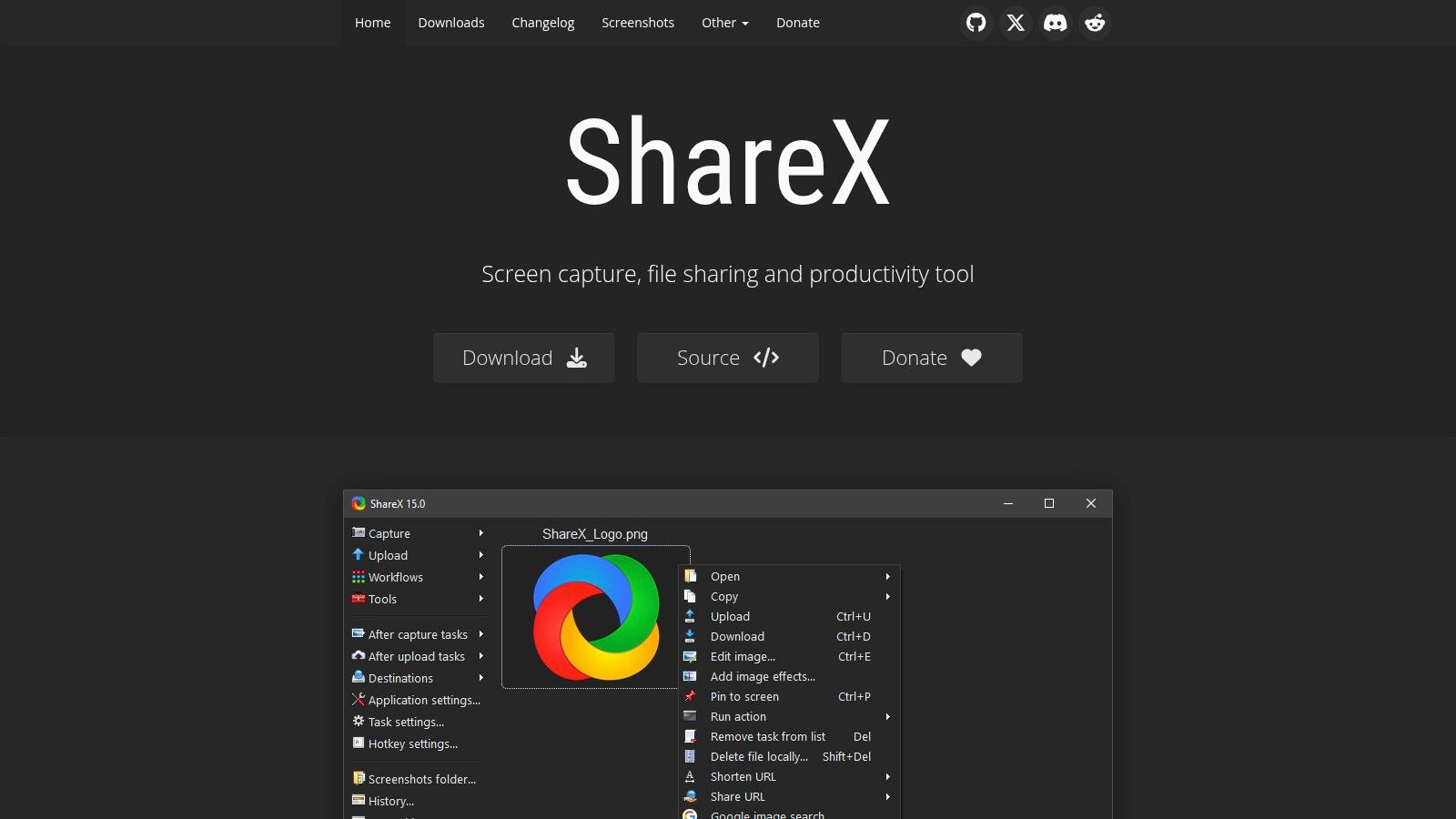
Its strength lies in its incredible flexibility. Users can configure complex hotkeys and workflows to handle repetitive tasks with a single keystroke. While it's a manual desktop tool, its scripting and command-line interface (CLI) support offer a bridge toward automation, setting it apart from most free utilities. For those looking at large-scale, programmatic solutions, understanding the difference between a manual tool like ShareX and a fully automated service can be crucial; exploring the best screenshot APIs available provides clarity on developer-focused alternatives.
Key Features & Use Cases
- Advanced Capture Modes: Includes region, window, scrolling capture, screen recording (video/GIF), and even text capture (OCR).
- Post-Capture Automation: Build custom "after-capture" tasks like adding image effects, watermarks, annotations, or opening in its built-in editor.
- Extensive Upload Destinations: Supports over 80 destinations, including Imgur, Dropbox, Google Drive, and custom FTP servers.
- Workflow Customization: Highly configurable hotkeys, scripting support, and a CLI for advanced automation tasks.
Best for: Technical support staff, QA testers, and developers on Windows who need a highly efficient and customizable tool for manual screen captures, bug reporting, and creating documentation.
| Feature | Details |
|---|---|
| Primary Function | Advanced screenshot utility with automation |
| Pros | Completely free and open-source; extremely powerful and customizable workflows; very scriptable for repeatable QA tasks. |
| Cons | Windows-only; the sheer number of options presents a steep learning curve for advanced automation. |
| Pricing | Free (Open-Source). |
| Website | getsharex.com |
4. Greenshot: The Fast and Free Annotation Tool
Greenshot is a lightweight, open-source screenshot tool that has long been a favorite in the tech community, especially among developers and technical support teams on Windows. It excels at providing a fast, no-frills method for capturing specific regions, windows, or full screens and immediately adding annotations. Unlike comprehensive suites or APIs, its core strength is speed and simplicity, making it one of the best screenshot capture software options for quick documentation and communication.
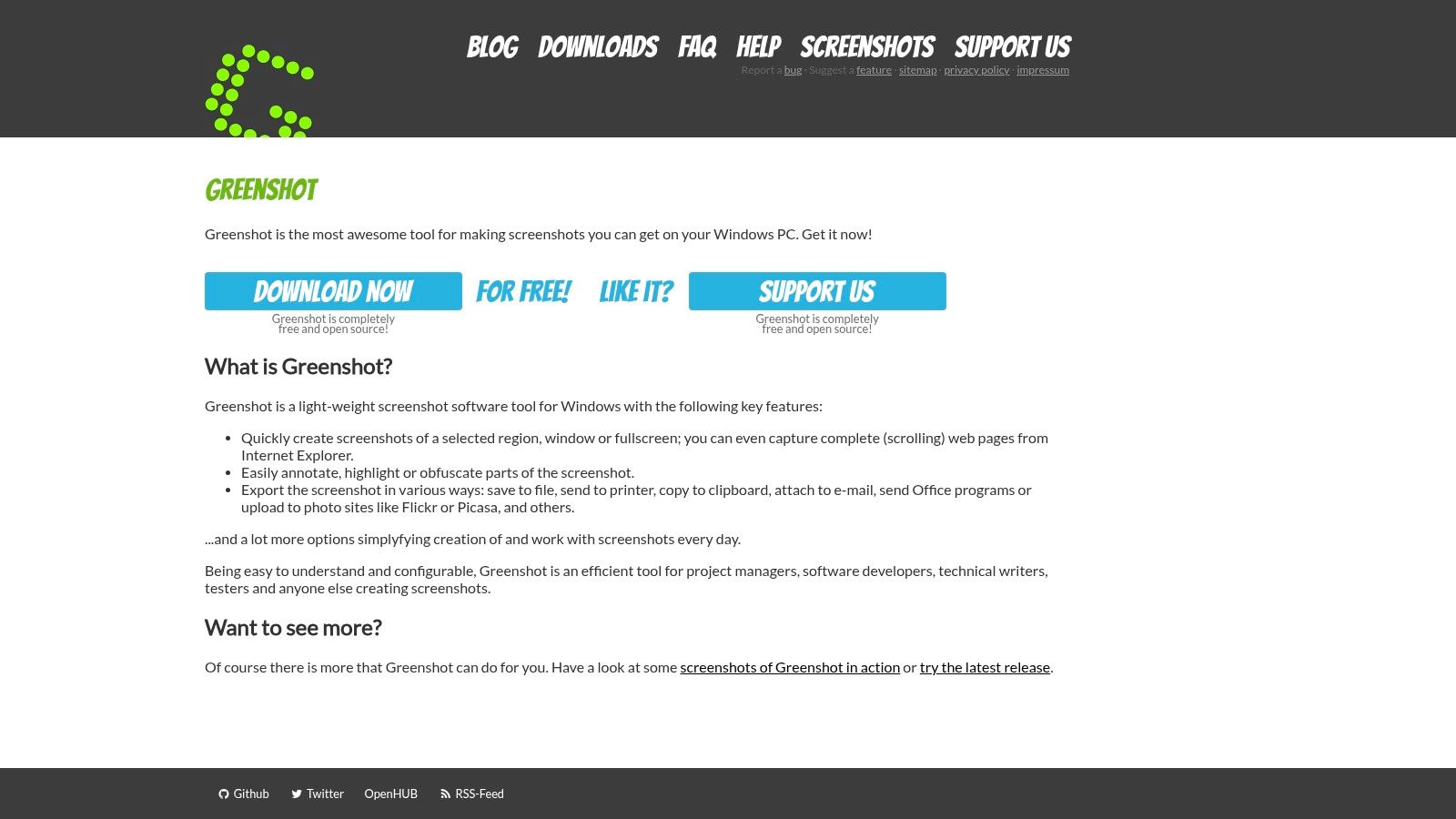
The built-in editor is a standout feature, allowing users to instantly highlight, obfuscate sensitive information, or add text and shapes without opening a separate, heavy application. This streamlined workflow is perfect for creating bug reports, drafting quick tutorials, or sending annotated feedback to colleagues. While its UI is more utilitarian than polished, its efficiency and zero cost on Windows make it an indispensable utility.
Key Features & Use Cases
- Versatile Capture Modes: Easily capture a specific region, window, the full screen, or even scrolling web pages (on Windows).
- Quick Annotation Editor: Instantly add arrows, text, highlights, and obfuscation to any capture for clear communication.
- Flexible Export Options: Send screenshots directly to a file, the clipboard, a printer, or attach them to an email with a single hotkey.
- Lightweight Performance: Runs unobtrusively in the background without consuming significant system resources.
Best for: Developers, QA testers, and IT support professionals who need a fast, free, and efficient tool for capturing and annotating screen content on the fly. It's ideal for creating clear bug reports and internal documentation.
| Feature | Details |
|---|---|
| Primary Function | Manual desktop screenshot capture and annotation |
| Pros | Free and open-source (on Windows); extremely fast and lightweight; powerful yet simple editor for quick markups. |
| Cons | The Windows version is more feature-rich than the Mac version; its user interface feels dated compared to modern, premium tools. |
| Pricing | Free for Windows. The macOS version is a paid app available on the Mac App Store for a small one-time fee. |
| Website | getgreenshot.org |
5. FastStone Capture: The Lightweight Windows Powerhouse
FastStone Capture is a compact and highly efficient screen capture utility for Windows that punches well above its weight. Unlike cloud-based APIs, it's a traditional desktop application celebrated for its stability, low resource usage, and a feature set that caters perfectly to documentation, QA testing, and general-purpose captures. It has long been a favorite in corporate environments and among technical writers.
Its standout feature is an incredibly reliable scrolling window capture that flawlessly stitches together long web pages or documents where other tools often fail. While its user interface may appear dated compared to modern alternatives, its functionality is robust and refined. As one of the best screenshot capture software options for Windows users seeking a one-time purchase, it delivers exceptional value without the burden of a recurring subscription.
Key Features & Use Cases
- Robust Capture Modes: Includes freehand, rectangular, window, and its renowned scrolling window/full-page capture.
- Built-in Editor: A capable editor allows for quick annotations, callouts, watermarks, and effects without needing external software.
- Screen Recorder: Features a lightweight screen recorder that can capture screen activity and save it as a video file or an animated GIF.
- Multiple Outputs: Send captures directly to the editor, clipboard, file, printer, or even a PowerPoint presentation.
Best for: Technical writers, QA testers, and support teams on Windows who need a reliable, all-in-one tool for creating documentation and tutorials. Its scrolling capture is ideal for preserving entire web pages or long application windows.
| Feature | Details |
|---|---|
| Primary Function | Manual screenshot and screen recording utility |
| Pros | Extremely light on system resources; rock-solid scrolling capture; excellent value with a lifetime license. |
| Cons | Windows-only platform; the user interface design feels outdated. |
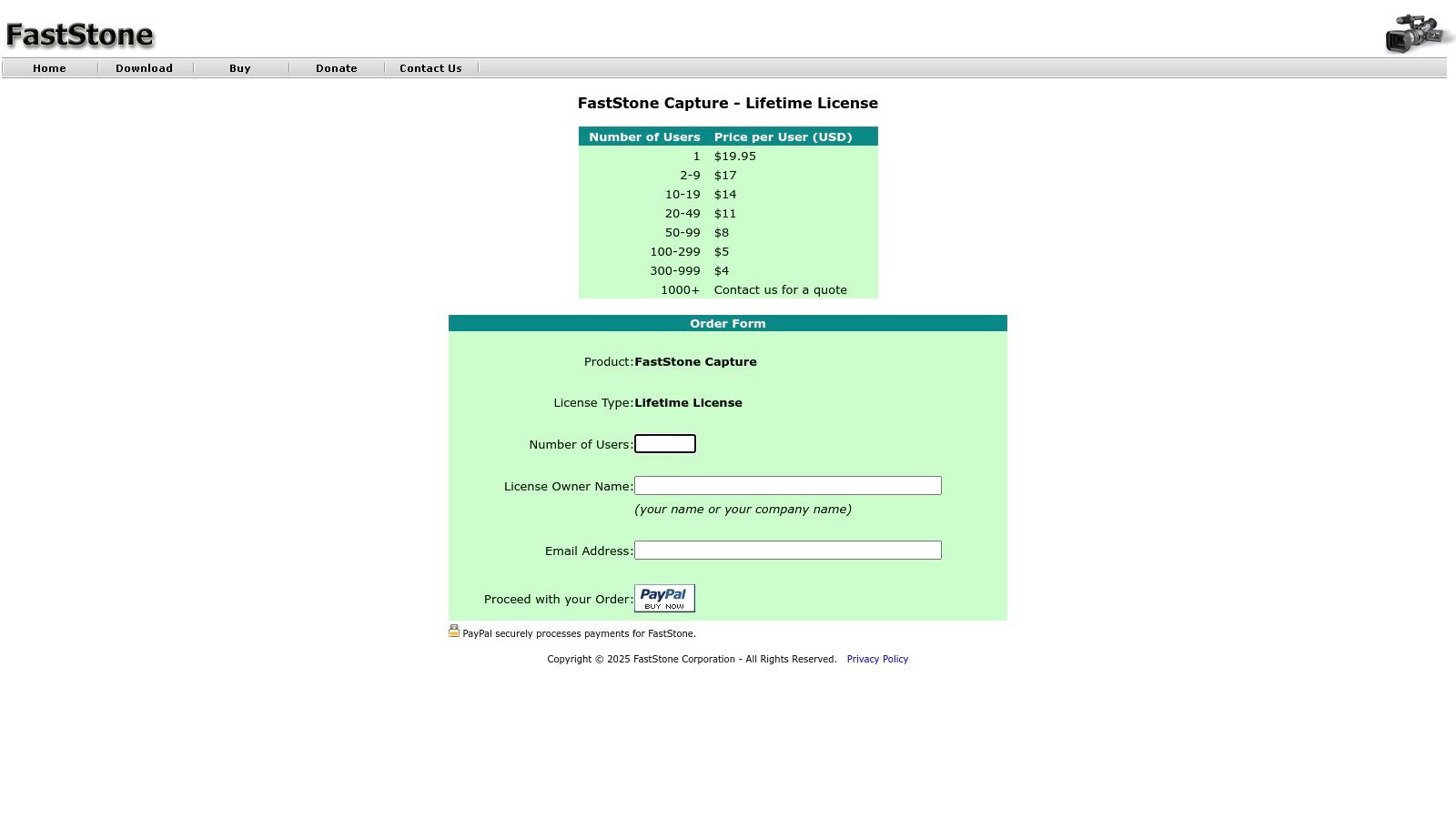
| Pricing | Free 30-day trial available. A lifetime license costs a one-time fee of $19.95. |
| Website | faststone.org |
6. PicPick: The All-in-One Design & Development Toolkit
PicPick is a comprehensive, all-in-one graphics tool for Windows that extends far beyond simple screen captures. It combines a powerful screenshot utility with an intuitive image editor, a color picker, a pixel ruler, and even a protractor, making it a Swiss Army knife for frontend developers, UI/UX designers, and graphic artists. It bridges the gap between a basic snipping tool and a complex photo editor like Photoshop.
Instead of being just another screenshot capture software, PicPick is designed as a complete workflow solution. You can capture anything on your screen, from a scrolling window to a specific region, and immediately open it in the built-in editor to add annotations, text, or effects. The integrated design tools are what truly set it apart, allowing you to measure elements or grab a color hex code directly from your capture without switching applications.
Key Features & Use Cases
- Integrated Toolset: Bundles a screen capture tool with an editor, color picker, pixel ruler, protractor, and whiteboard.
- Advanced Capture Modes: Includes full-screen, active window, scrolling window, and freehand region captures.
- Built-in Editor: Easily add text, arrows, shapes, watermarks, and effects like blur or pixelation.
- Multiple Sharing Options: Instantly share captures via email, FTP, cloud storage (Google Drive, Dropbox), or social media.
Best for: Frontend developers and designers on Windows who need an integrated suite of tools for capturing, editing, and measuring on-screen elements. It’s ideal for creating design mockups, documenting UI bugs, and building tutorials.
| Feature | Details |
|---|---|
| Primary Function | All-in-one screen capture and graphic design tool for Windows |
| Pros | Great value; bundles many useful design tools (color picker, ruler) into one app, streamlining workflows. |
| Cons | Windows-only platform; commercial licenses are subscription-based with no perpetual or lifetime option. |
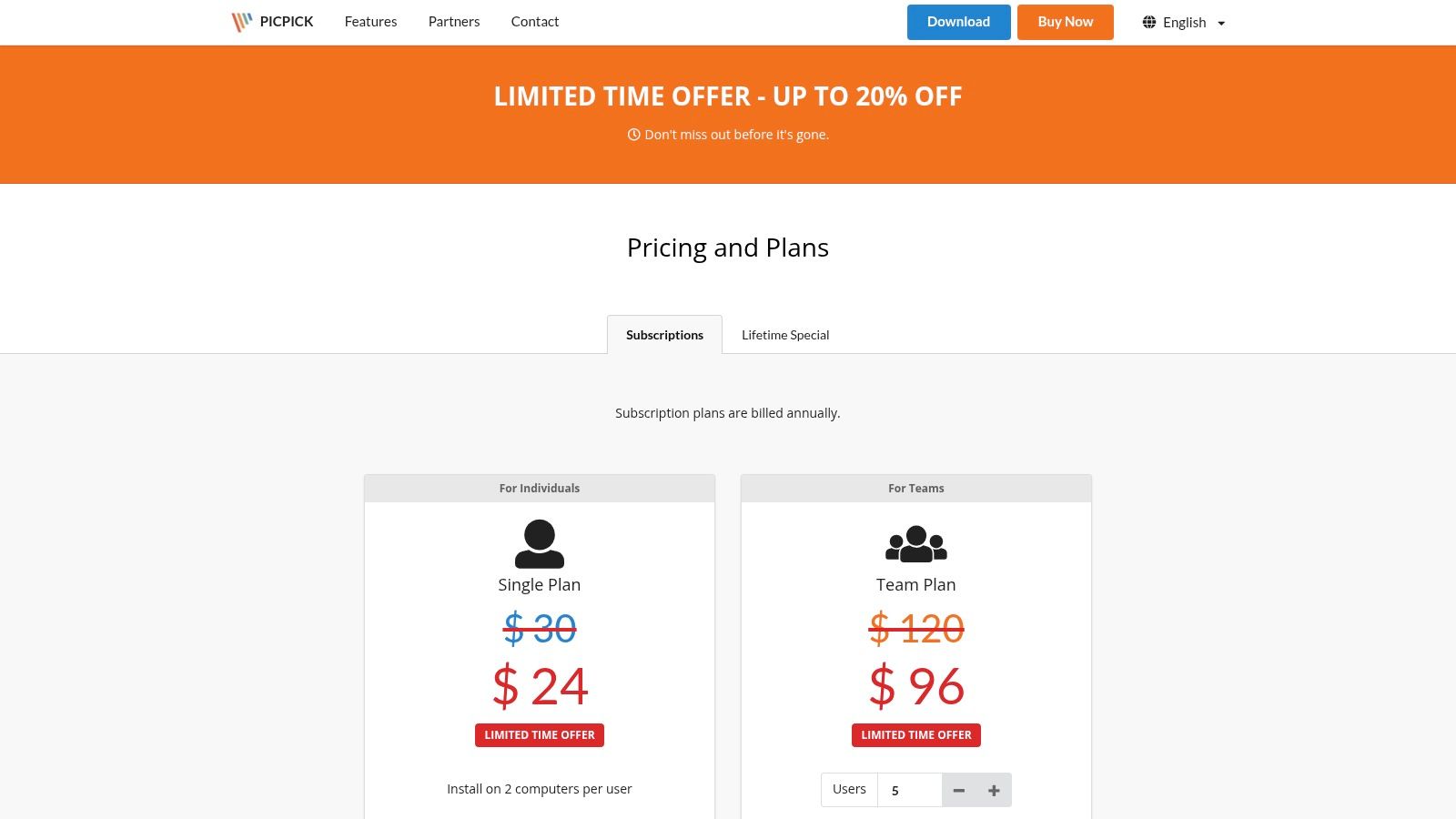
| Pricing | Free for personal use. A single license is $29.99/year. Volume and team licenses are also available. |
| Website | picpick.app |
7. Flameshot: The Open-Source Annotation Powerhouse
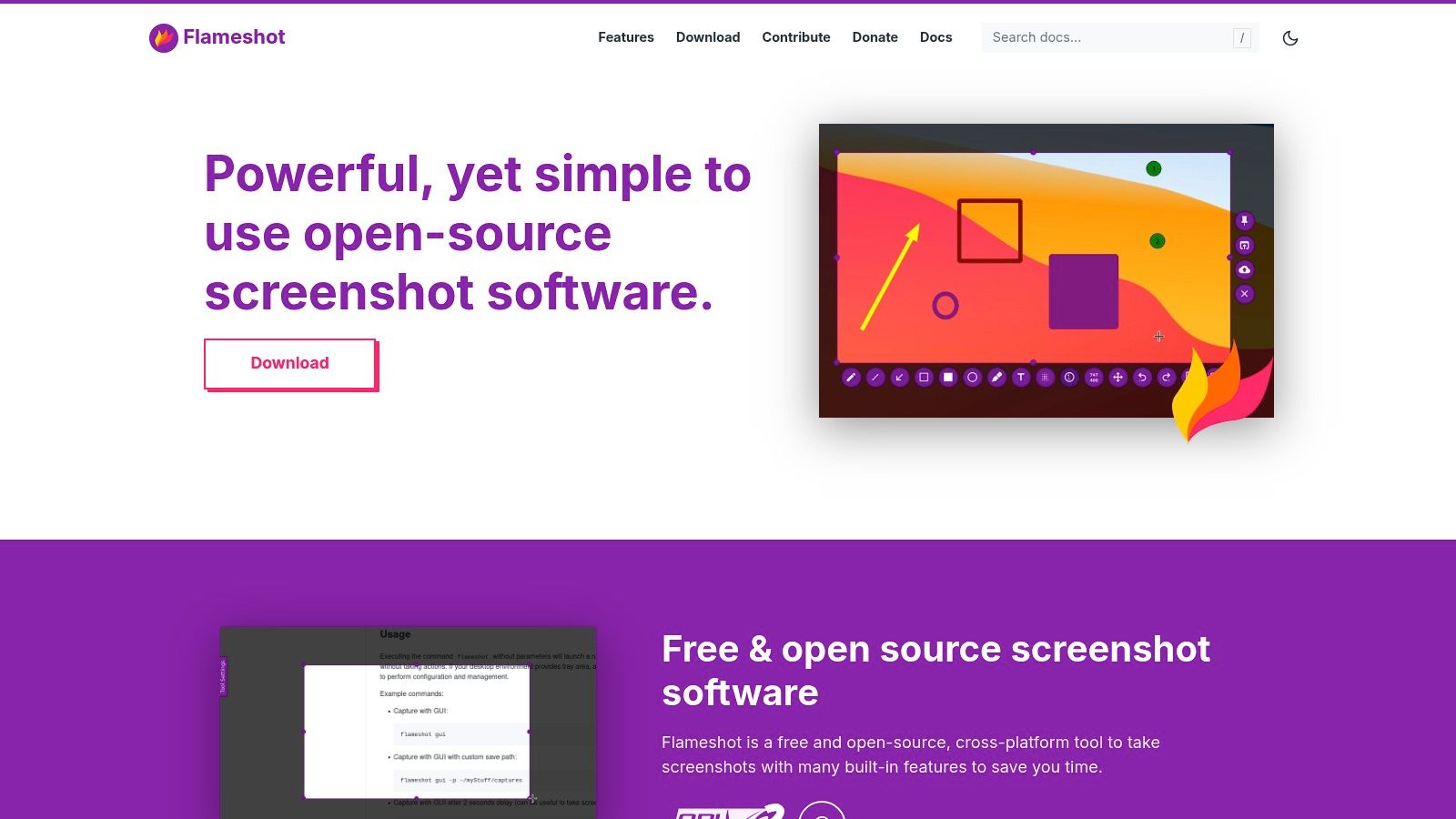
Flameshot is a powerful, open-source, and cross-platform tool renowned for its immediate, on-screen annotation capabilities. Unlike many other desktop applications that require opening a separate editor, Flameshot lets you mark up your selection the moment you capture it. This makes it some of the best screenshot capture software for users who need to quickly add arrows, text, highlights, or blur sensitive information without interrupting their workflow.
Its strength lies in its customization and efficiency. For developers and technical users, the command-line interface (CLI) is a significant advantage, enabling scripted captures and integration into custom workflows. This is particularly useful in Linux environments, and exploring how to take screenshots on Linux with tools like Flameshot can unlock advanced automation possibilities. The app is highly configurable, allowing users to tweak everything from button visibility to keyboard shortcuts.
Key Features & Use Cases
- In-Capture Editing: Annotate, blur, and highlight directly on the screen before saving the screenshot.
- Highly Customizable: Modify the interface, colors, and hotkeys to match your preferences.
- Command-Line Interface (CLI): Supports scripting and automation for programmatic captures.
- Cross-Platform: Native support for Windows, macOS, and various Linux distributions.
Best for: Developers, support technicians, and general users looking for a free, fast, and feature-rich tool for annotated screenshots. It excels at creating quick tutorials, bug reports, and annotated feedback.
| Feature | Details |
|---|---|
| Primary Function | Interactive desktop screenshot and annotation |
| Pros | Completely free and open-source; excellent on-the-fly editing tools save time; CLI support for scripting. |
| Cons | Lacks video or scrolling capture features; feature availability can sometimes vary between OS versions. |
| Pricing | Free (Open-Source) |
| Website | flameshot.org |
8. FireShot: The Versatile Browser Extension for Full-Page Captures
FireShot is a powerful and highly-rated browser extension designed for capturing full webpages directly within your browser. Unlike API-based tools, it offers a user-friendly interface with a surprisingly robust, desktop-like editor for annotations and modifications. Its standout feature is its ability to process captures locally, enhancing privacy and making it a trusted choice for professionals handling sensitive information.
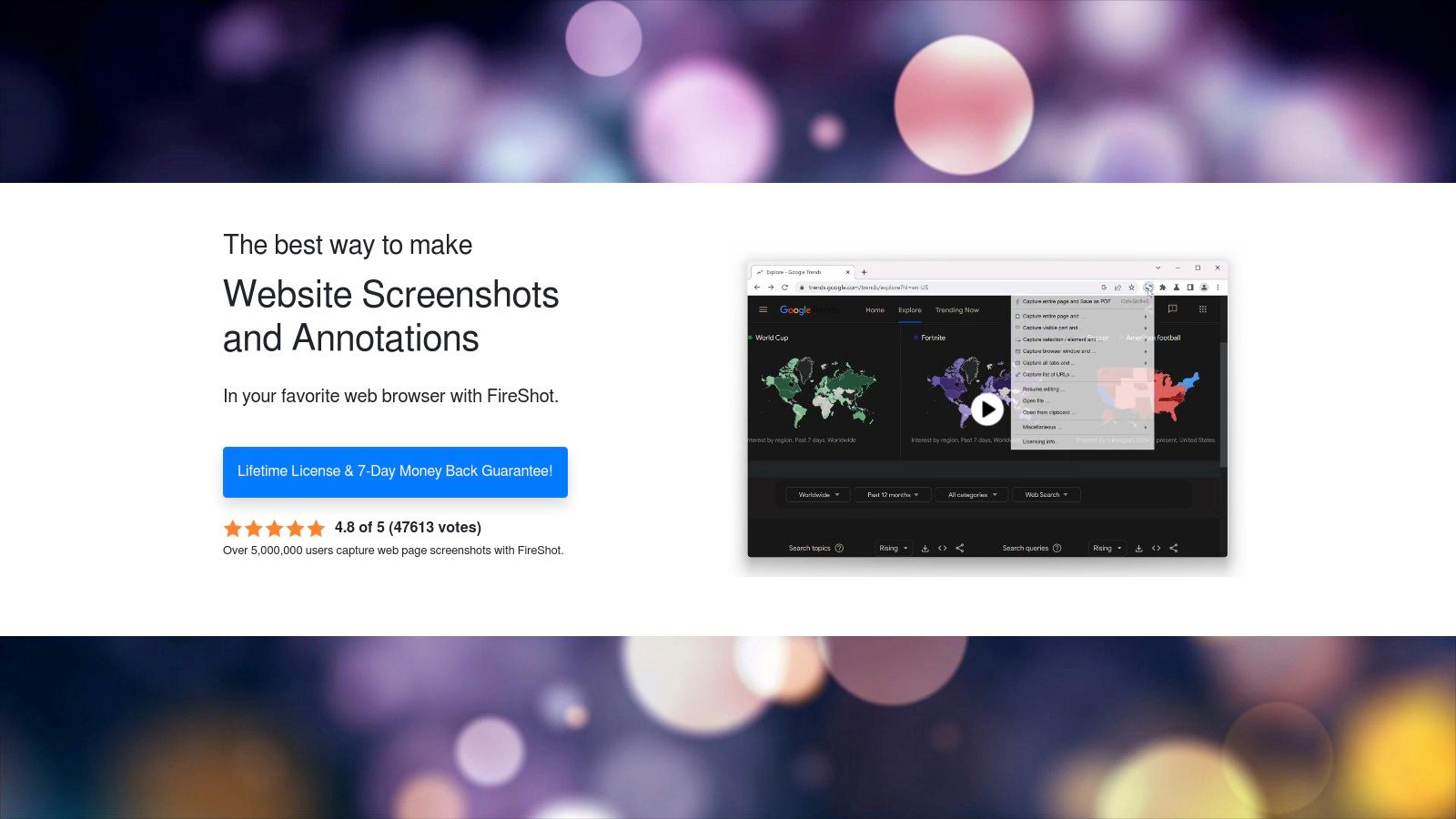
The extension’s strength lies in its comprehensive capture and export capabilities. It can save long scrolling pages as a single image or, more impressively, as a searchable PDF with live, clickable links. This makes FireShot an excellent tool for creating offline documentation, archiving web pages for compliance, or sharing detailed feedback with development teams. For users needing to capture many pages, the Pro version’s batch processing from a list of URLs is a significant time-saver.
Key Features & Use Cases
- Comprehensive Capture Options: Includes full-page, visible area, and specific element selection. The Pro version adds multi-tab and scheduled captures.
- Advanced PDF Export: Creates searchable PDFs that preserve text and active hyperlinks, ideal for archival and documentation.
- Built-in Editor: Provides a suite of annotation tools for highlighting, redacting, and adding notes directly to captures.
- Local Processing: All captures are handled on your machine, ensuring privacy and security without sending data to external servers.
Best for: Quality assurance testers, web designers, and SEO analysts who need a reliable, browser-based tool for capturing, annotating, and archiving entire webpages with high fidelity. Its local processing is a key advantage for privacy-conscious users.
| Feature | Details |
|---|---|
| Primary Function | Browser extension for full-page screenshot capture and editing |
| Pros | Works directly in the browser with local processing (privacy-friendly); excellent PDF export with live links; available for all major browsers. |
| Cons | Advanced features like batch capture and multi-tab screenshots require a paid Pro license; browser updates can occasionally affect scrolling capture functionality. |
| Pricing | Free version available with core features. FireShot Pro is available as a one-time lifetime license for $59.95. |
| Website | getfireshot.com |
9. Zight (formerly CloudApp): The Enterprise-Ready Visual Communication Hub
Zight, formerly known as CloudApp, is an enterprise-focused platform that extends beyond simple captures into a full-fledged visual communication tool. It’s engineered for teams in support, sales, and customer success who need to share information quickly and securely. The platform combines screenshots, screen recordings, and GIF creation into a single, cloud-based workflow where every capture generates an instant, shareable link.
Its primary differentiator is its robust feature set for team collaboration and security. Zight provides detailed administrative controls, user roles, single sign-on (SSO), and enterprise-grade compliance options like SOC 2. This makes it a strong contender for the best screenshot capture software within regulated industries or large organizations that require stringent data governance and oversight.
Key Features & Use Cases
- Instant Link Sharing: Every capture is automatically uploaded and a shareable link is copied to the clipboard for fast distribution.
- Multimedia Captures: Supports annotated screenshots, screen recordings up to 4K resolution, and animated GIFs.
- Enterprise-Grade Security: Offers team workspaces, SSO/SCIM provisioning, and compliance options for HIPAA and SOC 2 on higher tiers.
- Analytics & Controls: Provides view counts on shared links and allows setting link expiration dates for enhanced security.
Best for: Corporate teams and enterprise environments that need a secure, scalable, and compliant way to share visual information. It excels in customer support ticketing, sales demonstrations, and internal training where speed and governance are critical.
| Feature | Details |
|---|---|
| Primary Function | Cloud-based screenshot, GIF, and video capture with instant sharing and team controls. |
| Pros | Extremely fast link-based sharing workflow; powerful administrative and security controls; ideal for large, compliance-focused teams. |
| Cons | Many key collaboration and security features are locked behind expensive paid tiers; the cloud-centric workflow may not be suitable for offline or air-gapped environments. |
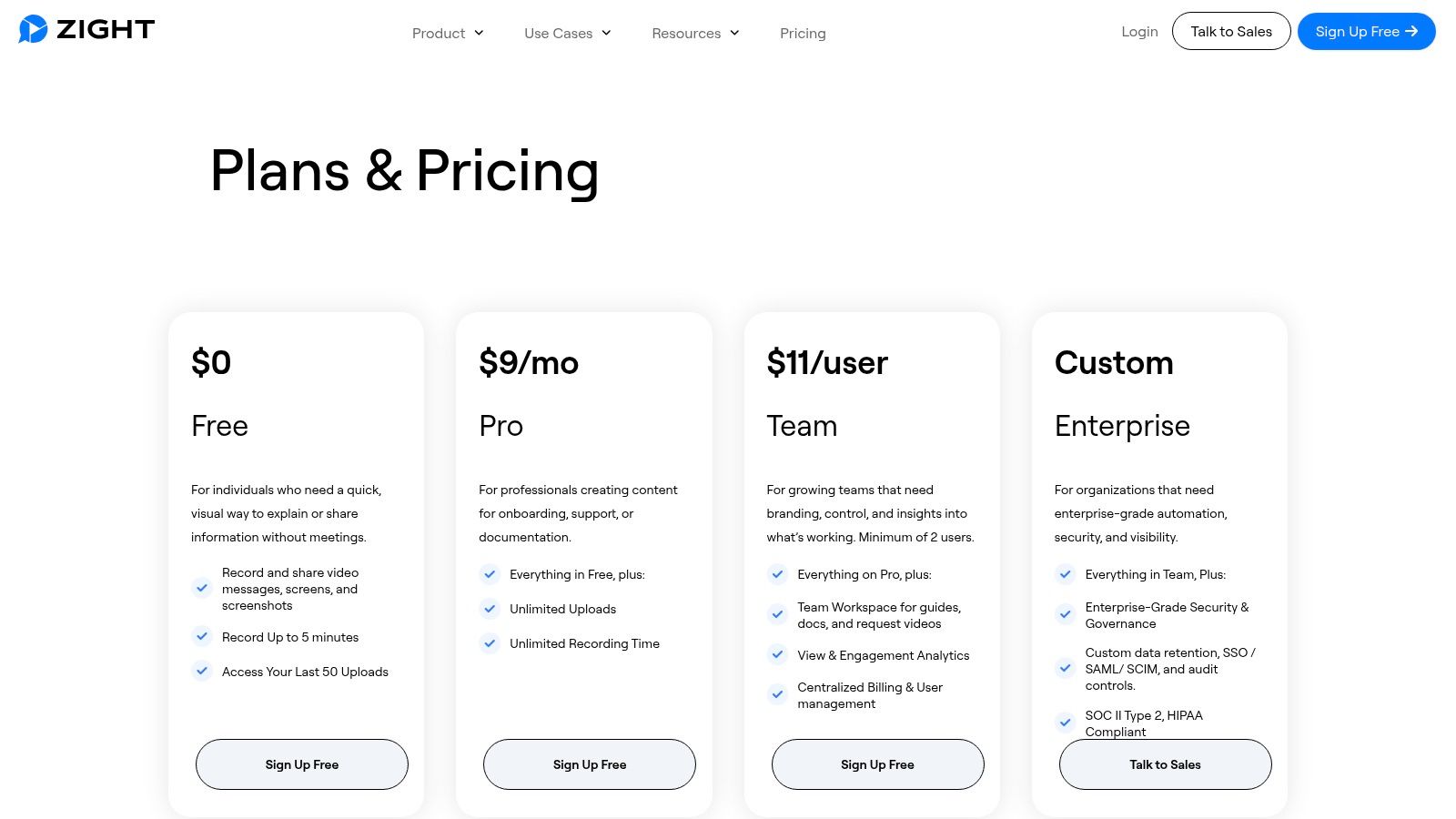
| Pricing | Free plan with limitations. Paid plans start at $9.95/user/month for Pro, with custom pricing for Business and Enterprise tiers. |
| Website | zight.com/pricing |
10. Droplr: The Cloud-First Screenshot Sharing Tool
Droplr is a screenshot and screen recording tool built for speed and seamless sharing, particularly within distributed teams. Instead of focusing on local file management, its core workflow automatically uploads every capture to the cloud and places a shareable short link on your clipboard. This makes it an excellent solution for quickly communicating visual information without clogging up email inboxes or chat channels.
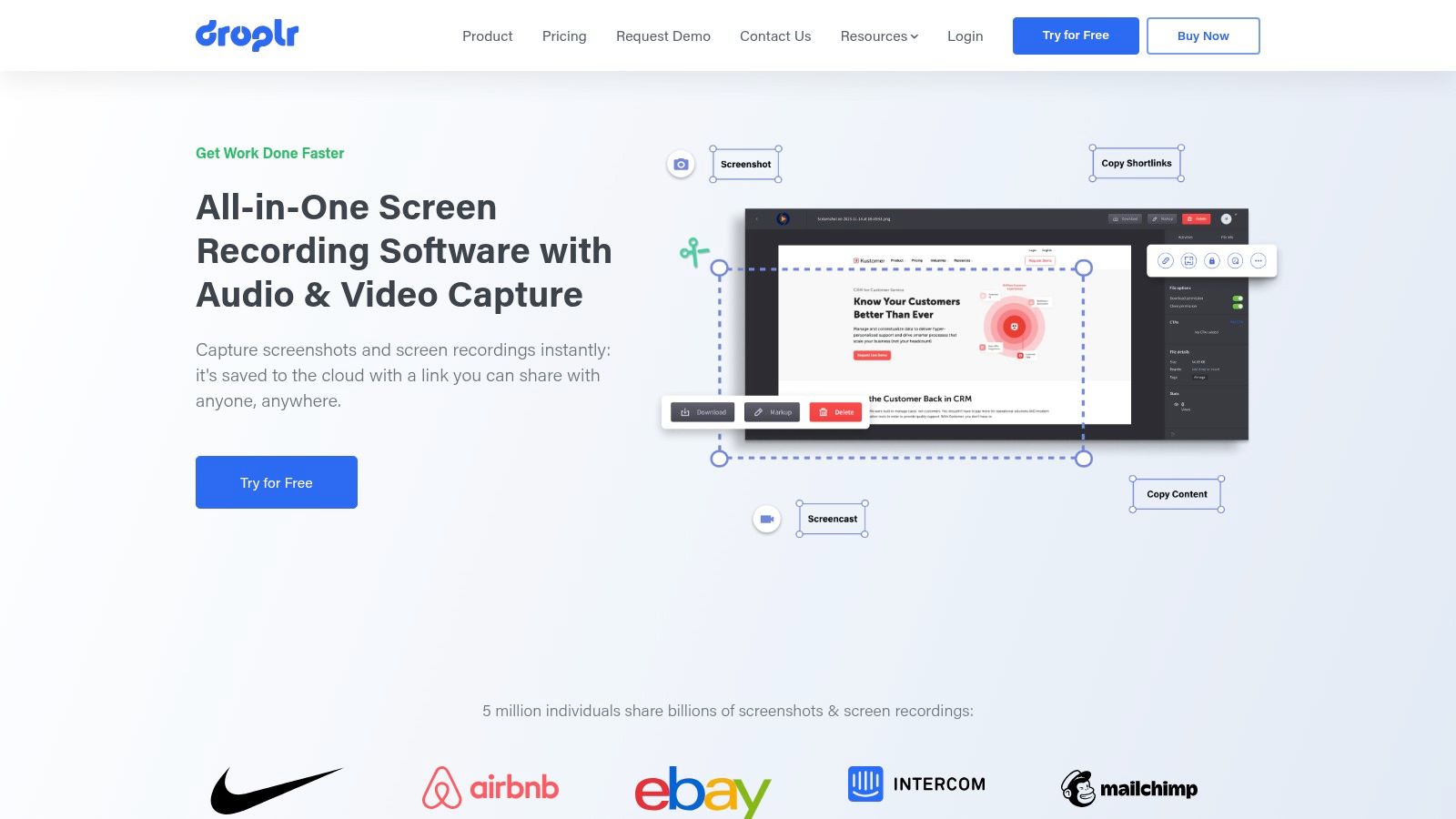
Its strength lies in its enterprise-grade governance and sharing capabilities. For organizations needing control over sensitive information, Droplr offers features like password-protected links, self-destructing drops, and viewer analytics. The platform's auto-redaction tool is also a standout, allowing teams to quickly blur sensitive data before sharing, making it a strong contender for the best screenshot capture software where security and compliance are paramount.
Key Features & Use Cases
- Cloud-Based Workflow: Instantly uploads captures and provides a short link for immediate sharing via Slack, email, or any other platform.
- Advanced Sharing Controls: Set link passwords, expiration dates, and view analytics to track who has seen your screenshot.
- Screen Recording & GIFs: Captures high-definition screen recordings with audio and webcam overlays, or creates simple, loopable GIFs.
- Enterprise Governance: Supports SSO, custom domains, and team management features for secure, organization-wide deployment.
Best for: Remote teams, customer support agents, and enterprise users who need a fast, secure way to share visual information. It excels at creating quick tutorials, reporting bugs, and providing visual feedback with robust sharing controls.
| Feature | Details |
|---|---|
| Primary Function | Cloud-based screenshot and screen recording with instant link sharing |
| Pros | Extremely fast sharing workflow; strong security and governance features (SSO, password protection); includes screen and GIF recording. |
| Cons | Primarily a cloud tool, less ideal for local-first workflows; some advanced features are gated behind higher-tier plans. |
| Pricing | Individual plans start at $7/month. Business plans with team features start at $8/user/month. |
| Website | droplr.com |
11. Gyazo: The Instant Share & Search Tool
Gyazo streamlines the process of capturing and sharing visuals, focusing on a rapid capture-to-link workflow. Instead of saving files locally, it instantly uploads your screenshot or GIF to the cloud and places a shareable link on your clipboard. This makes it one of the best screenshot capture software choices for fast-paced communication in support chats, development teams, or collaborative documentation.
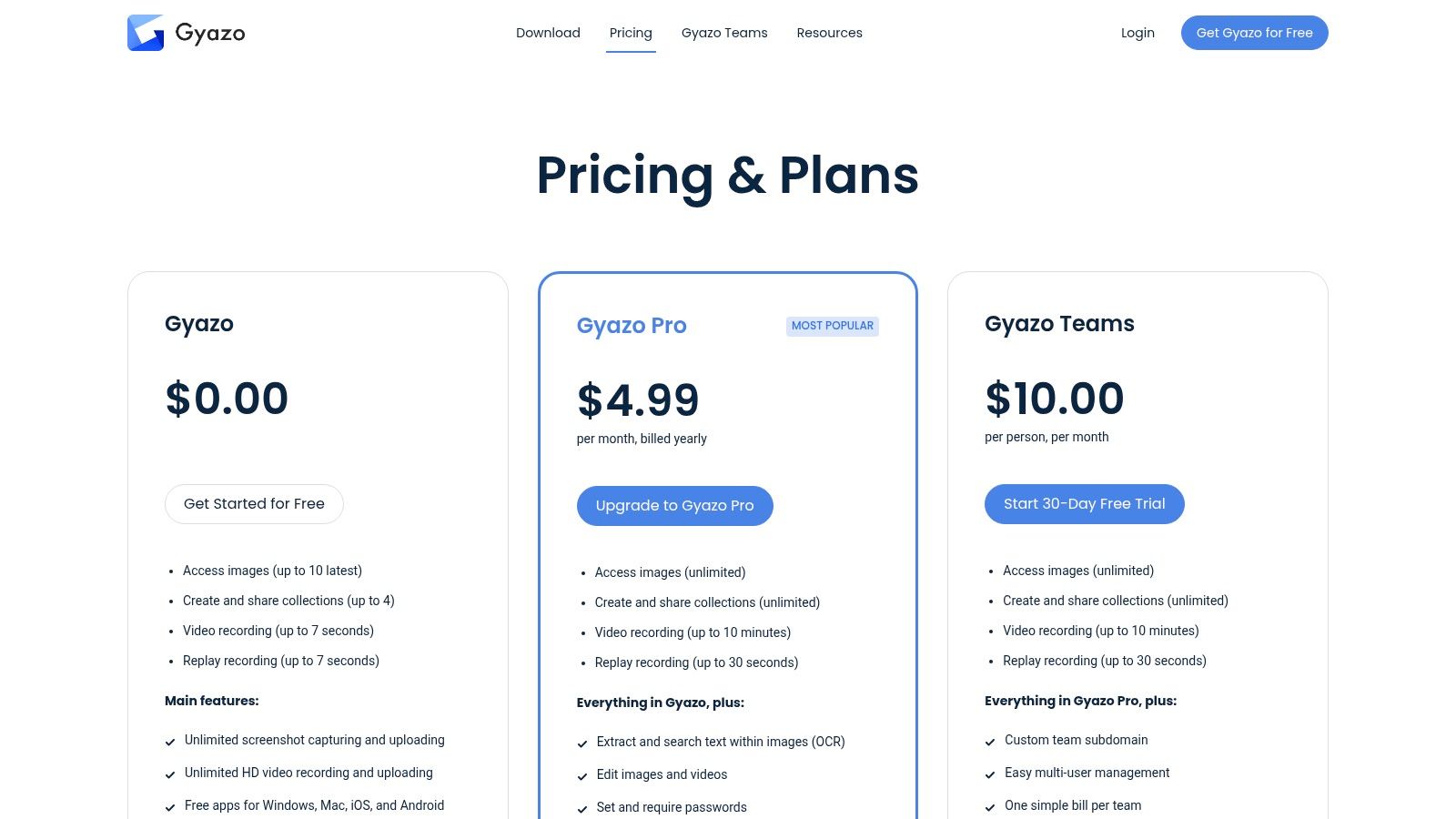
The platform is designed for efficiency and organization. It automatically saves every capture into online collections that can be revisited later. For users on paid tiers, its powerful OCR capabilities make every screenshot searchable by the text it contains, turning your visual archive into an accessible knowledge base. This feature is particularly useful for recalling error messages or specific UI text from past captures without manual tagging.
Key Features & Use Cases
- Instant Link Sharing: Captures are automatically uploaded, generating a short link for immediate pasting into Slack, Jira, or email.
- Searchable OCR Archive: Paid plans can search the text within any past screenshot, making it easy to find specific information.
- Team Collaboration: Provides SSO and admin controls for managing team access and ensuring secure knowledge sharing.
- Cross-Platform Apps: Available as desktop apps for Windows/Mac, mobile apps, and browser extensions for versatile capturing.
Best for: Support teams, developers, and project managers who need to share visual information instantly. It excels at quick bug reporting, creating visual documentation on the fly, and building a searchable library of UI elements and error codes.
| Feature | Details |
|---|---|
| Primary Function | Instant screenshot and GIF sharing via links |
| Pros | Extremely fast sharing workflow for support and dev chats; unlimited captures on all plans. |
| Cons | Free plan limits access to recent items and includes ads; cloud-hosted model may not fit strict on-premises security policies. |
| Pricing | Free plan with basic features and ads. Paid plans start at $4.99/month for individuals, offering OCR search and no ads. Team plans with SSO are also available. |
| Website | gyazo.com |
12. GoFullPage: The Ultimate Full-Page Browser Extension
GoFullPage is a highly popular and reliable browser extension designed for one specific task: capturing a complete, scrolling screenshot of an entire webpage. Unlike comprehensive desktop applications, it lives entirely within your browser, offering a one-click solution that intelligently scrolls, captures, and stitches the page into a single, seamless image. This simplicity makes it a go-to tool for web designers, QA testers, and content creators who need to archive or annotate long-form content.
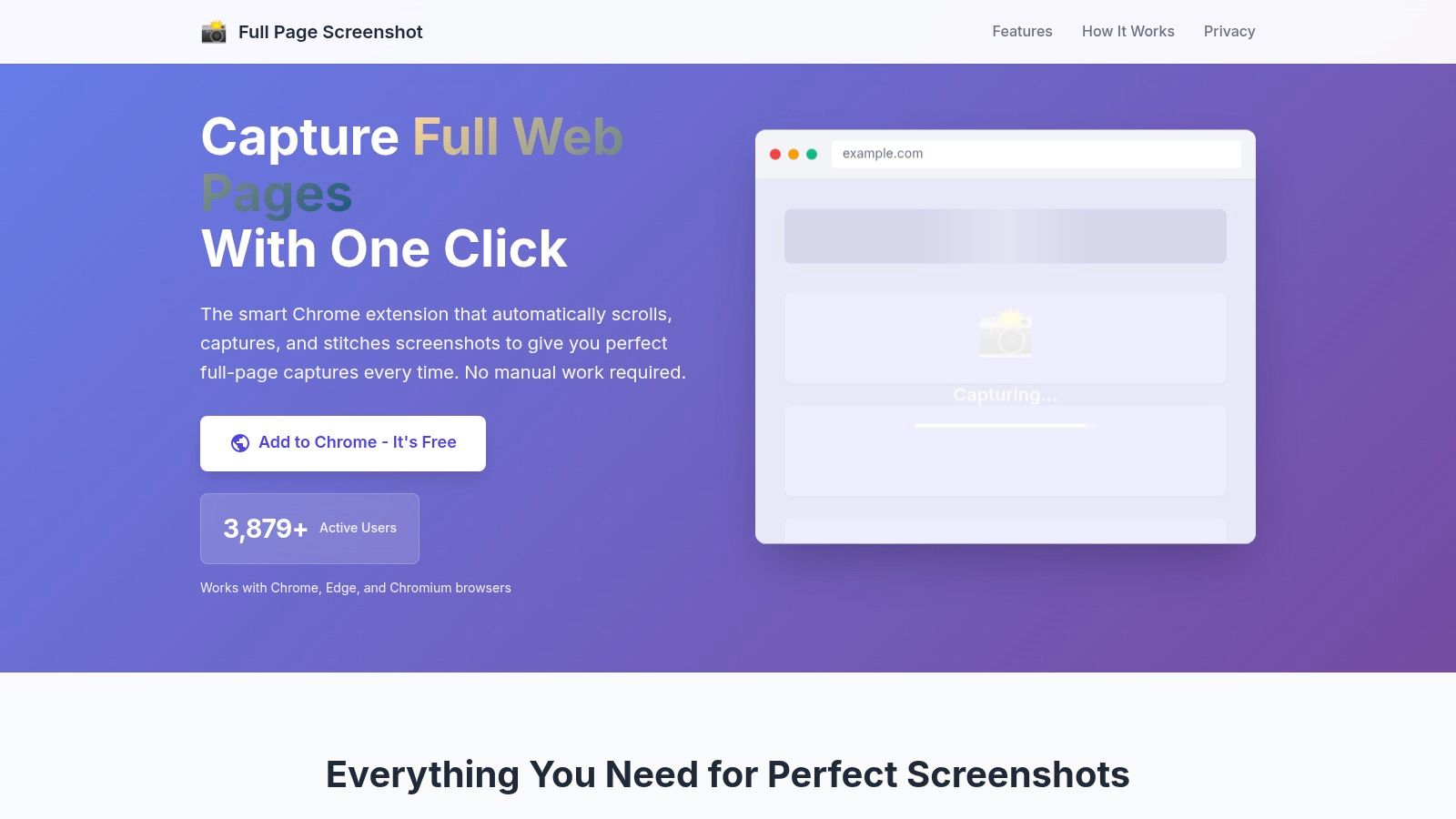
Its strength lies in its dependability, often succeeding where native browser tools fail on complex or infinitely scrolling pages. The capture process happens locally, ensuring privacy and speed. While it excels at its core function, those looking for automated or more advanced techniques might find it useful to understand different ways to take a full screenshot of a website to compare browser-based methods with API-driven solutions.
Key Features & Use Cases
- One-Click Capture: Automatically scrolls and stitches an entire webpage without manual intervention.
- Local Processing: All captures are handled within the browser, ensuring user data remains private.
- Built-in Editor: Includes tools for cropping, annotating, and adding shapes to your captures before exporting.
- Multiple Export Options: Save your full-page screenshot as a PNG, JPEG, or a multi-page PDF document.
Best for: Individuals and teams needing a quick, reliable way to capture entire webpages for bug reports, design feedback, content archival, or sharing articles. It’s the best screenshot capture software for browser-centric, manual full-page captures.
| Feature | Details |
|---|---|
| Primary Function | Browser extension for full-page screenshots |
| Pros | Extremely reliable for full-page captures where other tools fail; lightweight and fast for browser-based workflows. |
| Cons | Limited to webpages only (not a general desktop tool); advanced editor features require a premium upgrade. |
| Pricing | Free for core capturing features. A premium version with advanced editing and cloud storage is available. |
| Website | gofullpage.net |
Top 12 Screenshot Tools Comparison
| Tool | Core capture & output (✨) | Quality & reliability (★) | Price / value (💰) | Best for (👥) | Standout (🏆) |
|---|---|---|---|---|---|
| TechSmith Snagit | ✨ Image/scroll + video/GIF, powerful editor, templates, business licensing | ★★★★☆ — polished & stable | 💰 Paid (annual), business plans | 👥 Documentation teams, trainers, product writers | 🏆 Best-in-class editor & templates |
| CleanShot X | ✨ macOS region/scroll/video, OCR, cloud hosting, overlay editor | ★★★★★ — super fast macOS UX | 💰 Premium app; Pro cloud/team add-ons | 👥 macOS developers, creators, product teams | 🏆 Mac-native speed + built-in cloud |
| ShareX | ✨ Region/scroll/record, upload destinations, scripting/CLI, automation | ★★★★☆ — very capable; steeper learning curve | 💰 Free & open-source | 👥 Power users, QA, automation engineers | 🏆 Extremely scriptable & automatable |
| Greenshot | ✨ Fast region/window/fullscreen, annotate, export to many targets | ★★★★☆ — lightweight & reliable | 💰 Free on Windows; Mac app paid | 👥 Testers, devs needing quick markups | 🏆 Fast, simple annotations for Windows |
| FastStone Capture | ✨ Region/object/scrolling capture, recorder, editor, portable build | ★★★★☆ — lightweight & consistent | 💰 Low-cost lifetime license | 👥 Windows QA and doc teams | 🏆 Portable, resource-light with lifetime key |
| PicPick | ✨ Capture + editor + color picker, pixel ruler, guides | ★★★★☆ — versatile toolkit | 💰 Affordable (subscription), volume licensing | 👥 Frontend developers & designers | 🏆 All‑in‑one dev/designer toolkit |
| Flameshot | ✨ Cross-platform region capture, in-capture annotation, CLI | ★★★★☆ — fast FOSS tool | 💰 Free & open-source | 👥 Developers, Linux users, FOSS advocates | 🏆 In-capture editing + CLI customization |
| FireShot | ✨ Browser full-page & element capture, local processing, PDF export w/ links | ★★★★☆ — privacy-friendly, browser-reliable | 💰 Free basic; Pro for PDF/batch features | 👥 SEO, QA, archivists needing web captures | 🏆 Full‑page + searchable PDFs with live links |
| Zight (CloudApp) | ✨ Screenshots, video (up to 4K), link sharing, analytics, workspaces | ★★★★☆ — fast sharing, enterprise-ready | 💰 Paid tiers; enterprise pricing | 👥 Customer success, sales, remote teams | 🏆 Link-based sharing + admin/compliance |
| Droplr | ✨ Screenshot/recording to cloud, annotations, auto-redaction, short links | ★★★★☆ — simple & reliable sharing | 💰 Paid with team/enterprise plans | 👥 Distributed teams needing governed sharing | 🏆 Quick links with redaction & access controls |
| Gyazo | ✨ Instant capture→short link, OCR search, desktop/mobile apps | ★★★★☆ — instant sharing & searchable | 💰 Free limited; paid for full access | 👥 Support, teams needing fast share & search | 🏆 Instant link + OCR searchable captures |
| GoFullPage | ✨ One-click full-page scrolling & stitching, local processing, export PNG/PDF | ★★★★☆ — very reliable for web pages | 💰 Free basic; premium editor upgrade | 👥 Web QA, SEO snapshots, archival tasks | 🏆 Simple, dependable full-page stitching |
Choosing Your Capture Champion: Final Recommendations
Navigating the landscape of screenshot capture software reveals a clear division: tools built for manual, interactive use and services designed for automated, programmatic capture. Your ideal solution depends entirely on which side of this divide your primary needs fall. We’ve explored a dozen powerful options, from versatile desktop applications to specialized browser extensions, each excelling in its own niche. The key takeaway is that the "best" tool is the one that seamlessly integrates into your specific workflow, whether you're a designer annotating a mockup or a developer automating visual data collection for thousands of web pages.
For individuals and teams whose work involves documentation, bug reporting, or creating training materials, desktop applications remain the undefeated champions. Tools like Snagit and CleanShot X offer a rich suite of features, including advanced editing, annotation, and cloud-sharing capabilities that streamline manual capture processes. Open-source alternatives like ShareX and Flameshot provide immense power and customizability for technically-inclined users who prefer a free, community-driven solution. These applications are perfect for capturing what you see on your screen at a specific moment in time.
However, the moment your requirements shift from manual captures to automated, high-volume, and data-driven tasks, the limitations of desktop software become immediately apparent. This is where a fundamental paradigm shift is necessary.
The Critical Pivot from Manual Tools to Automated APIs
Workflows in visual regression testing, SEO rank monitoring, social media preview generation, and AI data harvesting require a different class of tool altogether. The challenge is no longer about capturing a single screen; it’s about reliably and consistently capturing thousands or even millions of them. This is the domain of screenshot APIs, which are purpose-built for scalability, precision, and integration.
When evaluating the best screenshot capture software for these developer-centric use cases, several factors become paramount:
- Reliability at Scale: Can the service handle thousands of concurrent requests without failing? Managing a fleet of headless browsers is a complex infrastructural challenge, and a robust API abstracts this complexity away.
- Rendering Accuracy: Does the service accurately render modern web pages with complex JavaScript, CSS, and custom fonts? Consistency is crucial for tasks like visual testing, where even minor rendering differences can trigger false positives.
- Performance: How quickly can the API return a high-quality screenshot? Speed is essential for user-facing features, like generating on-the-fly link previews, and for high-throughput data collection pipelines.
- Advanced Features: Does the platform offer critical features like blocking ads and cookie banners, capturing full-page views, or targeting specific HTML elements? These capabilities ensure you get clean, usable images tailored to your exact needs.
Final Verdict: The Right Tool for the Right Job
Ultimately, selecting your capture champion means matching the tool's core purpose to your own. If your daily tasks revolve around manual screen captures, annotations, and sharing, a feature-rich desktop client is your best bet. Snagit offers a polished, all-in-one experience, while ShareX provides unparalleled power for those willing to invest time in its configuration.
For developers, QA engineers, and data scientists, the conversation shifts entirely to automation and scale. In this arena, a dedicated API is not just a preference; it is a necessity. It provides the programmatic control and reliable infrastructure required to build sophisticated, automated visual systems. By offloading the complexities of browser management, you can focus on your core application logic, confident that your visual data will be captured accurately and efficiently. This distinction is the most important factor when choosing the best screenshot capture software to power your projects and drive your business forward.
Ready to move beyond manual tools and embrace the power of automated, developer-first screenshot generation? ScreenshotEngine provides a rock-solid, high-performance API that handles all the complexities of headless browser management at scale. Stop debugging Chrome instances and start building with our reliable infrastructure by signing up at ScreenshotEngine.